
“Mastering YouTube’s Parental Controls: A Rapid Guide”
In today’s digital age, keeping kids safe online is a top priority for parents. YouTube, with its endless stream of content, can be both a learning tool and a potential minefield. But fear not—mastering YouTube’s parental controls is easier than you think! This quick guide will walk you through simple steps to create a safer viewing experience, giving you peace of mind while letting your little ones explore responsibly. Let’s dive in!
Understanding YouTube Parental Controls and Why They Matter
YouTube has become a vast digital playground for kids, but not all content is suitable for young audiences. Parental controls on YouTube are essential tools to ensure a safer viewing experience. By utilizing features like Restricted Mode and Supervised Accounts, parents can filter out inappropriate content and limit exposure to harmful material. These controls also allow you to customize viewing time, ensuring kids don’t spend endless hours glued to the screen.
Here’s a quick breakdown of key parental control features:
- Restricted Mode: filters out mature content and comments.
- Supervised Accounts: Tailors content based on age groups (Explore, Explore More, or Most of YouTube).
- Timer: Sets limits on daily or weekly screen time.
| Feature | Purpose |
|---|---|
| Restricted Mode | Blocks unsuitable content and comments |
| Supervised Accounts | Adjusts content based on age and maturity level |
| Timer | Controls viewing duration |
Setting Up Restricted Mode for Safer Browsing
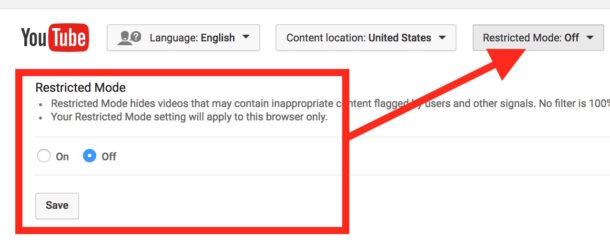
One of the most effective tools for ensuring a safer browsing experience on YouTube is Restricted Mode. This feature filters out perhaps inappropriate content, making it ideal for younger viewers or those who prefer a more controlled environment. To activate it, simply scroll to the bottom of any YouTube page, click on the Restricted Mode toggle, and lock it with your Google account password. This ensures the setting remains consistent across all devices.
Here’s a quick breakdown of how Restricted Mode works:
- Filters Content: Blocks videos flagged as inappropriate by YouTube’s algorithms and community guidelines.
- Customizable Access: Can be enabled or disabled by account holders, with an option to lock it for added security.
- Cross-Device sync: once activated, it applies to all devices logged into the same account.
| feature | Benefit |
|---|---|
| Content Filtering | Ensures only family-friendly videos are shown. |
| Password Protection | Prevents unauthorized changes to the setting. |
Creating and Managing Supervised Accounts for Kids
Supervised accounts on youtube offer parents a balanced approach to managing their child’s viewing experience without wholly restricting access. By setting up a supervised account, you can customize content filters, limit screen time, and even block specific videos or channels. This feature is perfect for older kids who are ready to explore YouTube but still need guidance. Here’s how to get started:
- Sign in to YouTube with your parent account and navigate to settings.
- Choose “Parental Controls” and select the level of supervision (Explore, Explore More, or Most of YouTube).
- Link your child’s Google Account to apply the restrictions.
| Supervision Level | Content Access |
|---|---|
| Explore | General content suitable for ages 9+ |
| Explore More | Broader range, including some music videos |
Once the account is set up, regularly review your child’s watch history and adjust settings as needed. YouTube also allows parents to pause supervision temporarily, giving kids limited independence while keeping safety in mind. With these tools, you can foster a healthier digital environment tailored to your family’s needs.
Tailoring Content Filters to Match Family Values
Every family has its unique set of values, and YouTube’s parental controls allow you to align content filters with what matters most to your household. Restricted Mode is the first line of defense, helping to screen out potentially inappropriate content. However,for a more tailored approach,consider creating a Supervised Account for your child. This feature lets you handpick the types of videos, channels, and topics they can access, ensuring the content aligns with your family’s principles.
Here’s a quick breakdown of options to customize content filters effectively:
- Restricted Mode: Filters out mature content across YouTube.
- Supervised account Levels: Choose from Explore, Explore More, or most of YouTube based on your child’s age and maturity.
- Approved Channels & Playlists: Curate specific channels or videos that match your values.
| Feature | Best Use Case |
|---|---|
| Restricted Mode | General filtering for all users |
| Supervised Account | Personalized content based on age and values |
| Approved Content | Full control over specific videos/channels |
Monitoring Watch History and Engagement Safely
Keeping an eye on your child’s YouTube activity has never been easier with built-in parental controls that allow you to monitor watch history and engagement effectively. Start by accessing the “Settings” menu in the YouTube app or website, where you can explore options like “Restricted Mode” to filter inappropriate content. Additionally, consider linking your child’s account to family Link or YouTube Kids for a more tailored experience. These tools provide insights into what they’re watching, how long they’re spending on the platform, and even allow you to set time limits.
For a more detailed breakdown of their activity, review their watch history regularly. This can be done through their account settings, giving you a clear picture of the content they’re consuming. Here’s a quick guide to the key features you can utilize:
| Feature | Purpose |
| Restricted Mode | Filters out mature or sensitive content |
| Watch History | Tracks videos watched for easy monitoring |
| Screen Time Management | Sets daily viewing limits |
By leveraging these tools, you can ensure a safer and more controlled viewing experience for your child, giving you peace of mind while they explore the platform.
Essential Tips for Maintaining Ongoing Parental Control Effectiveness
To ensure lasting effectiveness with parental controls on YouTube, it’s crucial to stay proactive and adapt to changes. Platforms evolve, and so do the methods to bypass restrictions. Regularly updating your settings and familiarizing yourself with new features can make all the difference. Here are some practical steps:
- Monitor Usage patterns: Keep an eye on viewing habits to identify any gaps in your controls.
- Enable Restricted Mode: This feature filters out potentially inappropriate content across the platform.
- Set Time Limits: Use tools like Google Family Link to manage screen time effectively.
| Action | Benefit |
|---|---|
| Regularly Review Blocked Channels | Ensures unwanted content stays inaccessible |
| Educate Your Child | Encourages responsible viewing habits |
Additionally, collaborate with your child to foster understanding rather than relying solely on restrictions. Open communication about why certain content is blocked can build trust and encourage compliance.Pair this with consistent reinforcement of rules, and you’ll create a balanced approach that keeps parental controls effective over time.
In Retrospect
Outro:
And there you have it—a quick guide to mastering YouTube’s parental controls! With these tools at your fingertips, you can create a safer, more tailored viewing experience for your family. Stay in control,explore confidently,and enjoy worry-free browsing. Happy watching! 🚀
