“”
YouTube is a vast universe of videos—full of learning, laughter, adn endless entertainment.But when kids are exploring, parents often wonder: How do I keep it safe and age-appropriate? The good news? YouTube offers powerful tools to create a worry-free viewing experience. Whether you’re looking to filter content, limit screen time, or block unwanted distractions, this guide will walk you thru simple, effective ways to take control. Let’s dive in and make YouTube a safer space for your family—one click at a time.
Understanding YouTube’s Built-In Parental Control Features
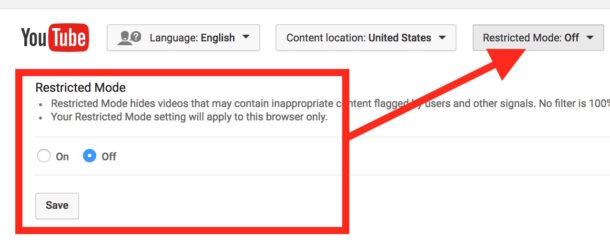
Navigating YouTube’s built-in parental controls can be a game-changer for parents looking to create a safer viewing surroundings for their kids. YouTube Kids, designed specifically for younger audiences, offers a curated selection of age-appropriate content. Beyond this, parents can use Restricted Mode to filter out potentially mature content on the main platform. To enable it, simply scroll to the bottom of any YouTube page, click on “Restricted Mode,” and toggle it on. This feature works across all devices, ensuring consistency in filtering.
For more granular control, consider these additional tools:
- Supervised accounts: Tailor YouTube’s experience for teens by selecting content settings based on their age group.
- timers: Set viewing limits on YouTube Kids to manage screen time effectively.
- Blocking Features: Prevent specific channels or videos from appearing in your child’s feed.
Here’s a quick overview of YouTube’s key parental control features:
| Feature | Purpose |
|---|---|
| Restricted Mode | Filters mature content |
| Supervised Accounts | Customizes content for teens |
| YouTube Kids Timer | Manages screen time |
| Blocking Tools | Restricts unwanted channels/videos |
Setting Up Restricted mode for Safer Viewing
Ensuring a safer viewing experience on YouTube is simpler than you might think. By enabling Restricted Mode, you can filter out potentially inappropriate content, making it a valuable tool for parents. This feature works across all devices and is accessible through a few straightforward steps. Here’s how to activate it:
- Desktop: Scroll to the bottom of any YouTube page, click on “Restricted Mode,” and toggle it on.
- mobile App: Tap your profile picture, go to “Settings,” select “General,” and enable Restricted Mode.
- Smart TV: Navigate to the settings menu, find “Restricted Mode,” and activate it.
Restricted Mode isn’t foolproof, but it’s a great first step in creating a more controlled environment. For added security, consider combining it with other parental controls.Below is a quick comparison of features:
| Feature | Restricted Mode | YouTube Kids |
|---|---|---|
| Content Filtering | Moderate | High |
| Age-Appropriate Settings | No | Yes |
| Accessibility Across Devices | Yes | Yes |
Creating a Supervised Account for Younger Kids
Setting up a supervised account for younger kids on YouTube ensures they explore content safely while giving parents peace of mind. With YouTube’s built-in tools, you can customize their experience by restricting mature content, setting screen time limits, and approving channels they can watch. Here’s how to get started:
- Sign in with a Google Account: Use your existing family-linked account or create a new one for your child.
- Enable Supervised Features: Go to Settings > Parental Controls and select the appropriate content level (Explore, Explore More, or Most of YouTube).
- Block Specific Videos or Channels: curate their feed by manually approving or blocking content.
For better control, consider pairing their supervised account with YouTube Kids, which offers a more filtered environment. Here’s a quick comparison:
| Feature | Supervised YouTube | YouTube Kids |
|---|---|---|
| Content level | Customizable (3 tiers) | Pre-filtered for younger ages |
| Parental Approvals | Manual channel/video blocking | auto-filtered with optional approvals |
| Watch History | Visible in parent dashboard | Limited to app-only |
Exploring third-party Tools for Enhanced Monitoring
While YouTube’s built-in parental controls offer a solid foundation, third-party tools can take monitoring to the next level. These solutions provide granular oversight, allowing parents to customize filters, track viewing history, and even set screen time limits. Popular options include:
- Bark – Monitors content and alerts parents about concerning videos or comments.
- Qustodio – Blocks inappropriate content and tracks watch time across devices.
- Net Nanny – Uses AI to filter harmful material in real time.
| Tool | Key Feature |
|---|---|
| Bark | Alerts for flagged content |
| Qustodio | Cross-device tracking |
| Net Nanny | AI-powered filtering |
For families with multiple devices, third-party tools offer seamless integration, ensuring consistent protection whether kids are on a tablet, phone, or smart TV. Many apps also include detailed reports, giving parents insights into viewing habits without constant manual checks. Combining these tools with YouTube’s native settings creates a robust safety net, balancing freedom with peace of mind.
Best Practices for Ongoing Digital Safety Conversations
Keeping your child safe while they explore YouTube requires proactive measures and ongoing communication. start by discussing the platform’s content openly and explaining why certain videos or channels might not be appropriate. Encourage your child to come to you if they encounter something unsettling or confusing. This builds trust and fosters a sense of responsibility.
Another effective strategy is to implement practical parental controls.YouTube offers features like Restricted Mode and Supervised Accounts, which filter out mature content and limit access to specific features. here’s a quick overview:
| feature | Purpose |
|---|---|
| Restricted Mode | Filters out potentially inappropriate content |
| Supervised Accounts | Tailors content based on age and preferences |
| Screen Time Settings | Limits daily watch time |
- Regularly review your child’s watch history to ensure the content aligns with their age and interests.
- Set clear boundaries around screen time and discuss the importance of balancing online activities with offline ones.
By combining these tools with open dialog, you can create a safer and more enjoyable YouTube experience for your child.
Final Thoughts
As the digital landscape continues to evolve, equipping yourself with the tools to navigate it becomes essential—especially when it comes to safeguarding your family’s online experience. Mastering YouTube’s parental controls isn’t just about setting limits; it’s about unlocking peace of mind while empowering your kids to explore, learn, and enjoy responsibly. By taking these simple yet impactful steps, you’re not just managing settings—you’re shaping a safer, more intentional digital environment for your loved ones. So, dive in, take control, and let the journey toward mindful viewing begin. After all, the best adventures on YouTube are the ones you can trust. Happy watching—and parenting—with confidence!