
Unlock the Power of Video: Mastering YouTube in PowerPoint
Want to make your PowerPoint presentations more dynamic? Videos can transform a static slideshow into an engaging experience—but embedding youtube clips shouldn’t be a hassle. Whether you’re a teacher, marketer, or student, mastering this skill can elevate your presentations effortlessly.
In this simple guide, we’ll walk you through the easiest ways to integrate YouTube videos into PowerPoint—no confusing tech jargon, just clear steps to help you captivate your audience. Let’s dive in!
Understanding YouTube Integration in PowerPoint
Adding YouTube videos to your PowerPoint presentations can transform static slides into dynamic, engaging content.Whether you’re a teacher enhancing a lesson or a professional spicing up a business pitch, embedding videos is easier than you think. Here’s how to make it work seamlessly:
- Embed Directly: Use the “Insert” tab adn paste the YouTube URL—PowerPoint handles the rest.
- Adjust Playback: Right-click the video to set autoplay, loop, or trim options.
- Offline Backup: Download the video as a fallback in case of connectivity issues.
| Feature | Benefit |
|---|---|
| Live Streaming | Keep content fresh with real-time updates. |
| Custom Thumbnails | Match the video preview to your slide design. |
for a polished look, always test your presentation beforehand. Internet speed, permissions, and device compatibility can affect playback. Pro tip: use the “Play in Click Sequence” option to sync video starts with your narration. This ensures smooth transitions and keeps your audience hooked without awkward pauses.With these tricks, your slides will feel more like a multimedia experience than a traditional deck.
Optimizing Video Quality for Seamless Presentations
Creating flawless presentations with embedded YouTube videos in PowerPoint requires attention to both technical details and strategic optimization. Start by ensuring your video is hosted on YouTube in the highest resolution possible—720p or 1080p is ideal for professional clarity. use the platform’s built-in editing tools to trim unneeded sections, add captions, and enhance audio quality. When embedding, opt for the YouTube embed code rather than downloading the video, as this ensures up-to-date content and reduces file size. Additionally, check your internet connection before presenting to avoid buffering issues.
| step | Action |
|---|---|
| 1 | Upload video in 1080p to YouTube |
| 2 | Use YouTube’s editing tools for enhancements |
| 3 | Embed video link in PowerPoint |
To further enhance the viewer experience, consider the following tips: optimize slide design to complement the video, ensuring fonts and colors align with the visual content. Test playback on multiple devices to confirm compatibility and smooth transitions. Lastly, use powerpoint’s playback options to control autoplay, looping, and start/stop points. By focusing on these elements, your presentation will not only look polished but also deliver a seamless and engaging experience for your audience.
Step-by-Step Embedding Techniques for YouTube Videos
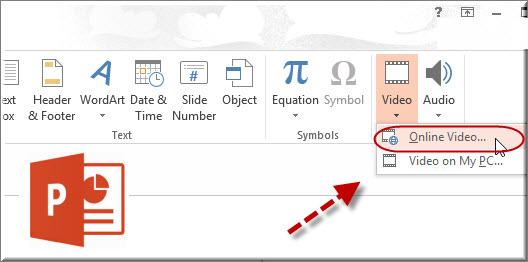
Embedding YouTube videos into PowerPoint presentations can transform your slides into dynamic, engaging content. Start by copying the video URL from YouTube. Then, navigate to the slide where you want the video to appear. Use the Insert tab and select Video > Online Video. Paste the URL into the dialog box and click Insert. The video will automatically embed, allowing you to resize or reposition it as needed.For seamless playback, ensure your device is connected to the internet during the presentation.
here’s a rapid overview of the process:
- Copy the YouTube video URL
- Go to the desired slide in PowerPoint
- Use the Insert tab and select Online video
- Paste the URL and confirm
| Step | Action |
|---|---|
| 1 | Copy the video link |
| 2 | Insert it into PowerPoint |
| 3 | Adjust size and position |
For advanced customization, explore playback options like autoplay, loop, or starting at a specific timestamp. Right-click the embedded video and select Playback to access these features. additionally, consider downloading the video using a trusted tool if offline access is required, tho this may require compliance with youtube’s terms of service. By mastering these techniques, you’ll elevate your presentations with professional multimedia elements.
Enhancing Engagement with Advanced Playback features
Incorporating advanced playback features into your YouTube videos in PowerPoint can substantially elevate audience engagement. By leveraging tools like custom start and end times, you can seamlessly trim irrelevant sections and focus on key moments. Additionally, enabling autoplay ensures a smooth transition between slides, keeping your audience immersed in the presentation. These features not only enhance the flow but also make your content more dynamic and professional.
To further captivate your audience,consider utilizing interactive elements such as:
- Looping videos for continuous playback of essential content.
- Embedded controls to allow viewers to pause, play, or adjust volume directly from the slide.
- Timed playback to synchronize video segments with your narration or slide transitions.
| Feature | Benefit |
|---|---|
| Custom Start/End | Focuses on relevant content |
| Autoplay | Ensures smooth transitions |
| Looping | Reinforces key messages |
In Summary
Outro: Unlocking Your Presentation Potential
As you close this guide, remember that transforming your PowerPoint slides into engaging YouTube videos is more than just a technical skill—it’s a gateway to creativity. With the steps you’ve mastered, you’re now equipped to craft visually compelling content that resonates with your audience, whether it’s for education, marketing, or personal expression.
Think of this as your starting point. Every video you create is an opportunity to refine your style, experiment with new ideas, and connect with viewers in meaningful ways. So, fire up PowerPoint, let your imagination take the lead, and start sharing your stories with the world.The stage is set, the tools are in your hands, and the possibilities are endless. Happy creating!
