Why Won’t My AppleTV Open the YouTube App? Unlocking the Mystery

Imagine settling into your favorite spot on the couch,ready to dive into a world‌ of‍ endless videos on YouTube,only to find your AppleTV stubbornly refusing to open the app. Frustration mounts as you tap the remote, reboot the device, and maybe even whisper a plea⁣ to the tech gods—yet, the screen remains disappointingly blank. You’re ⁢not alone in this⁤ predicament. Between software‍ quirks, connectivity hiccups, and mysterious glitches, there’s‍ a labyrinth ​of reasons​ why⁢ your AppleTV‌ might be playing hard ‍to get with YouTube. In this article, we’ll ​unravel the mystery, shedding light on potential issues and⁢ guiding you step-by-step toward smooth streaming once again. Whether it’s a⁢ simple fix⁢ or a deeper tech dilemma, we’ll help you unlock the ​answers⁤ and restore your digital harmony.

Common Culprits Behind the YouTube⁣ app Not‌ Opening on AppleTV

If your AppleTV refuses‌ to launch the YouTube app,⁤ there are a few usual suspects to​ consider. First, outdated software could be ⁣the issue. AppleTV and ​its apps require regular updates to function seamlessly. ⁤A quick check in‌ the settings can confirm whether your​ device ​is running the latest version.Second, storage limitations might be causing the problem.If your AppleTV is running low on space,apps ⁣like YouTube may struggle to open.⁤ Clearing unused‌ apps or files ⁣can free up the necessary resources. Lastly, network connectivity plays a crucial role. ⁤Weak⁣ or unstable Wi-Fi can prevent the app from loading properly.

Here’s a quick troubleshooting guide to help you pinpoint the cause:

  • Restart AppleTV: A simple reboot can often​ resolve minor glitches.
  • Check for Updates: ​Ensure both AppleTV and the youtube app ​are up-to-date.
  • Reinstall the App: Deleting and ⁢reinstalling YouTube⁢ can fix corrupted files.
  • Test Your internet: Run a speed test to confirm your connection is stable.
Symptom Likely Cause
App crashes immediately Corrupted app or insufficient storage
Loading wheel spins indefinitely Weak internet ⁤connection
App missing from ⁢home screen Accidental deletion or update error

Troubleshooting Steps to Get youtube running‌ Smoothly Again

Experiencing ⁤issues with the YouTube app on your AppleTV can be⁤ frustrating, but a few targeted fixes often resolve the problem. Start with these essential steps:

  • Restart your AppleTV: A simple ⁢reboot can clear temporary glitches.
  • Check for updates: Ensure both the YouTube app and tvOS are up to date.
  • Reinstall the app: Delete and redownload YouTube to refresh its installation.
  • Verify your internet‍ connection: A weak or unstable network⁢ often causes app ⁣failures.
Issue Quick Fix
App crashes on‍ launch Clear cache or reinstall
Buffering or⁣ freezing Check Wi-Fi speed

If the app still refuses ⁢to cooperate, dive deeper into system settings. Sometimes,⁤ resetting the AppleTV to factory⁣ defaults—though a last resort—can eliminate persistent software ⁣conflicts. Alternatively, check if othre streaming apps work; if thay don’t, the issue‌ might lie with your device or network ⁢rather ‌than YouTube alone. ​Keeping ⁤an eye on Apple’s support forums for ⁤known bugs⁢ can also provide timely solutions.

Advanced Fixes for Persistent YouTube‍ App Issues on AppleTV

If you’re struggling with a⁣ stubborn YouTube app ​on your AppleTV, advanced ⁢troubleshooting steps‌ can frequently enough resolve the issue. Start by clearing the app ‍cache, which can accumulate over time and cause performance glitches. Navigate to the⁤ AppleTV settings, locate the YouTube⁣ app, and clear its cache. Next, ensure your device’s firmware is up to date by checking ​for system updates in the settings menu. Outdated software‌ can ‍lead to‌ compatibility issues with newer app⁤ versions.⁢ Additionally, consider reinstalling the YouTube app entirely, as this⁤ can eliminate corrupted files or misconfigurations. Sometimes, ⁢a fresh install is the simplest‍ yet most effective solution.

For deeper issues, explore network-related fixes. Ensure your AppleTV is connected to a stable Wi-Fi network with sufficient bandwidth—buffering or crashes often stem from poor connectivity. If the problem persists, try adjusting your ⁤DNS​ settings to⁤ use a public DNS server like Google’s (8.8.8.8) or Cloudflare’s (1.1.1.1).Here’s a ⁤quick reference table for DNS settings:

DNS Provider Primary DNS Secondary DNS
Google 8.8.8.8 8.8.4.4
Cloudflare 1.1.1.1 1.0.0.1

By implementing these advanced ‍fixes, you can ⁢frequently enough unlock the mystery behind why your AppleTV won’t open the YouTube app, restoring seamless streaming in no time.

Preventive Measures to Avoid Future YouTube App Problems

To ensure smooth streaming and avoid recurring issues with the‌ YouTube app on⁣ your AppleTV,adopting a few proactive habits can make all the difference. Regular maintenance is key—keep​ your device and apps updated to the latest​ versions, as outdated software often leads to compatibility problems. Additionally, clearing the app cache periodically can prevent sluggish performance. here’s a quick‌ checklist to stay ⁣ahead of potential glitches:

  • Restart ⁤your appletv weekly to refresh⁢ system processes.
  • Check for updates manually if automatic updates are disabled.
  • Monitor storage space—low memory can disrupt app functionality.

For a more structured ‍approach, consider the following table outlining common triggers and their fixes:

Issue Preventive Action
App freezing on launch Reinstall YouTube app every few months
Buffering or crashes Ensure a⁤ stable Wi-Fi connection or use Ethernet

Final Thoughts

Outro:

And there you have ​it—the mystery of‌ the uncooperative YouTube app on your AppleTV, unraveled! Whether it’s a stubborn update, a sneaky glitch,‍ or just a hiccup in the digital universe, these fixes should get​ you back to binge-watching in no time. Still stuck? Don’t ‌fret—sometimes, even tech gremlins need a second (or third) nudge.Try the steps again, take a ⁣deep breath, and remember: every ⁢streaming struggle‍ is just a temporary pause in your entertainment marathon. Happy watching! 🍿🎬
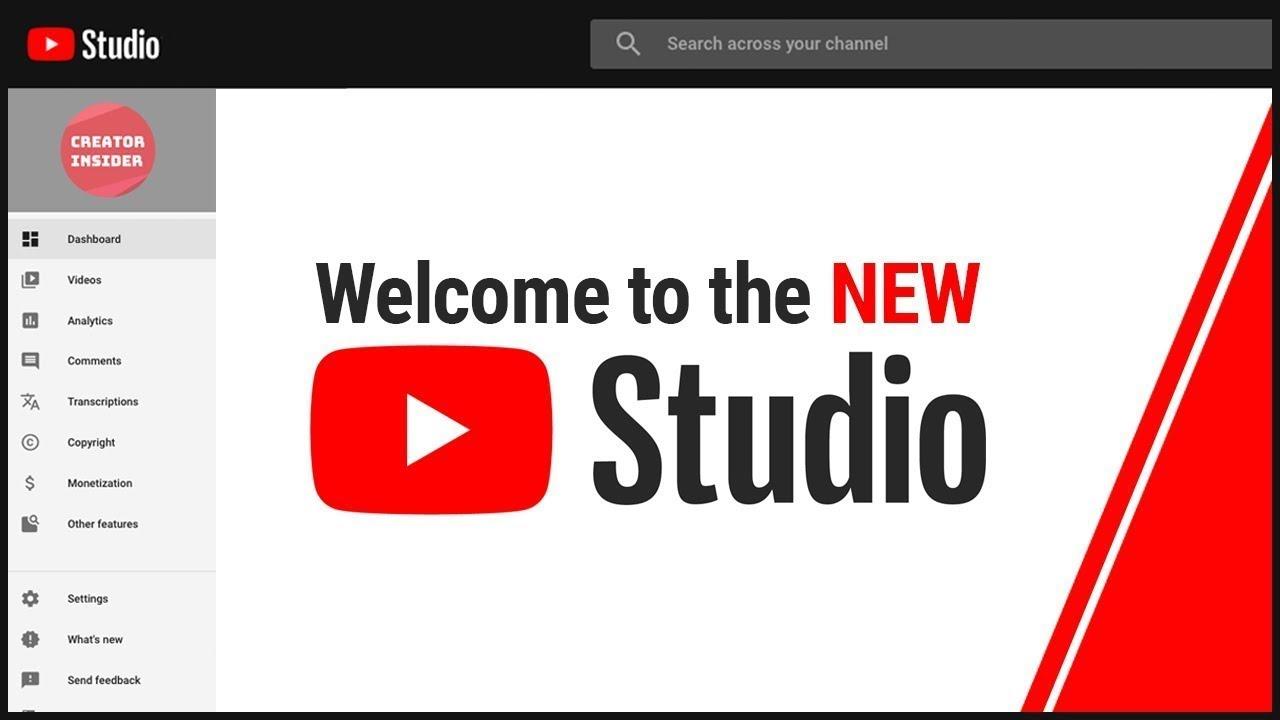
Unlocking YouTube Studio: Fixing Settings Access Issues

navigating the ⁤labyrinth of YouTube Studio can feel‌ like unlocking a treasure chest—until ‍you hit ⁤a snag with⁣ settings‌ access. ‌Whether ‌you’re⁤ a seasoned creator​ or a newcomer, there’s‍ nothing⁢ more‌ frustrating than stumbling ​upon a roadblock when⁣ trying‌ too fine-tune your‍ channel. Picture this: ⁣you’re ready to ​optimize your videos, ​tweak ​monetization preferences, or customize ⁢your layout, only to find that the settings you need are mysteriously‍ out of reach. ⁣Sound⁣ familiar?‌ You’re not alone. In⁢ this article, we’ll dive into the common hiccups that can disrupt your YouTube Studio ⁣experience​ and guide you through practical ​solutions to⁢ reclaim⁢ control. ⁢Let’s unlock‍ the​ door and get you back on track to building the channel of your dreams.
Troubleshooting YouTube Studio Access Problems

Troubleshooting ‌YouTube Studio Access ⁤Problems

Experiencing difficulty⁣ accessing ⁢YouTube Studio?⁤ You’re ⁤not alone. Many creators face ⁣obstacles when⁣ trying to‌ manage their channels due to‍ incorrect settings or account permissions. First, ensure you’re signed into the​ correct Google account linked to your ‍YouTube channel.⁤ If you’re using multiple accounts, switching to the right one can resolve the issue instantly. Additionally,check if your‌ browser‍ is up to ‌date⁤ or⁢ try clearing the ⁤cache and cookies,as outdated software⁢ can hinder access.For advanced users, verifying firewall or antivirus⁣ settings may⁢ also help, as thay ‍sometimes block access to YouTube Studio unintentionally.

If‍ the problem persists,​ it’s worth examining your account permissions. Here’s a quick⁣ breakdown:

Issue Solution
Incorrect⁢ Permissions Ask an Admin to grant⁣ you access.
Account Suspension Review YouTube’s ⁤Terms of Service and‌ appeal⁤ if ⁢necessary.
Third-Party Tools Disable extensions temporarily to ​check for conflicts.

Lastly, consider reaching ‍out to YouTube’s​ support ⁢team‍ for further assistance if none of the above steps work. They can provide tailored solutions based on your account’s specific situation.

Exploring Common Causes of Settings⁣ Restrictions

Exploring Common Causes of ⁣Settings restrictions

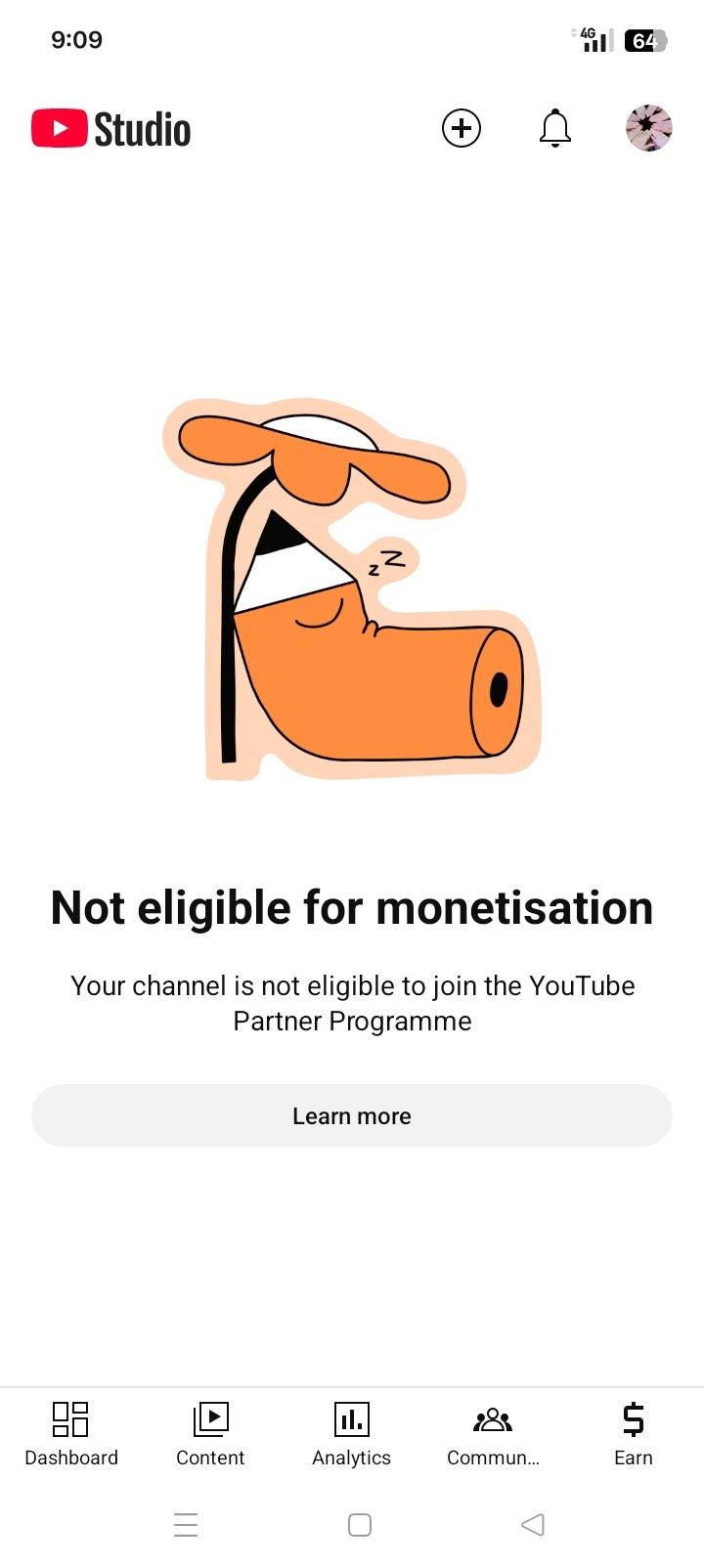
Experiencing⁢ restricted ⁤access to⁣ YouTube Studio settings⁢ can be frustrating,⁣ especially ​when you’re trying ‌to manage ⁢your⁢ channel⁢ effectively. ‍One of‌ the ⁢ most common ⁣causes is administrative permissions.‌ if you’re​ not​ the primary‍ owner of the channel,you might not have the ‌necessary‍ rights⁣ to modify ⁢certain settings.⁢ Another⁣ frequent ⁣issue ‍is account ‌verification​ status. youtube⁤ often⁤ restricts access to ⁣advanced features until your account is​ fully verified or meets specific criteria,such ⁣as having a certain number‌ of subscribers⁤ or adhering‍ to community guidelines.

Technical glitches can ‌also play ⁤a‌ role in limiting your access. Browser compatibility issues, outdated cache,⁢ or ⁢even conflicting ‍extensions⁢ can prevent‍ you from accessing YouTube Studio‌ settings. Below⁤ is ‍a quick⁤ reference table ⁤summarizing ​these common causes:

Cause Solution
Administrative ⁣Permissions Ensure you’re the primary⁤ owner ‌or request access
Account Verification status Complete verification⁢ steps
Technical​ Glitches Clear cache or ‍try a different browser

Additionally,policy ⁣violations or strikes ⁢on your channel⁢ can temporarily restrict access⁤ to‍ certain settings. YouTube enforces ‍strict guidelines,‌ and​ even minor infractions⁤ can lead to ‌limitations. Staying compliant with their‌ policies​ is essential to avoid disruptions.⁣ Lastly,⁣ outdated apps or APIs ⁢used for channel management can ⁤also cause​ issues. Always ensure ​your tools are​ up-to-date to ⁤prevent unnecessary⁢ barriers.

Step⁣ by Step Guide to Regaining Control Over Your Account

Experiencing trouble accessing your YouTube⁣ Studio settings can be frustrating,​ but regaining ⁣control is ‍easier than you think. Start by verifying your ⁢account permissions—sometimes,⁢ a simple logout and login can⁢ resolve ⁣access issues.If that doesn’t work, check these ​common culprits:

  • Browser cache: Clear it or ‍try ⁢an incognito window.
  • Google⁣ account ⁤sync: Ensure you’re logged ⁤into the correct profile.
  • Two-factor authentication: Confirm⁢ it’s ⁣enabled and functioning.

For ‍persistent problems, ⁢YouTube’s Help Center ⁤offers tailored solutions. Below is a quick ‌reference table for troubleshooting steps based on ⁣your issue:

Issue Action
403 Error Check permissions or contact channel ⁢owner
Blank page Disable extensions or ⁢update ⁤browser

Pro Tips to Prevent Future‍ Access Issues on ​YouTube Studio

Navigating YouTube Studio smoothly ​requires proactive measures ‍to⁢ avoid access issues. ⁣ Always ensure ⁤your ⁤account ‍security is robust ‌ by enabling two-factor ‍authentication⁤ and regularly⁤ updating ⁢your password.This not only ‍safeguards your channel⁢ but also prevents unauthorized ⁣access that coudl disrupt ⁤your​ workflow.Additionally,keep your browser and YouTube Studio app updated to‍ the latest versions to avoid compatibility ​glitches.Regularly clear ⁢your cache and cookies to eliminate potential conflicts that‌ might hinder​ your access.

Organizing ⁤your permissions and access levels​ is another key strategy.⁢ Use the table below to understand ⁢how to assign roles effectively within YouTube Studio:

Role Access Level Recommended For
Owner Full access Primary channel⁤ managers
Manager Edit and upload Team members handling ⁤content
Editor Edit⁤ only Content reviewers
Viewer View analytics Analysts‍ or ⁢advisors

Monitor permissions regularly ⁢ to ‌ensure only⁣ trusted individuals ‍have access. ‌By implementing ⁣these ⁢strategies, you’ll minimize disruptions ‌and ​maintain seamless control⁣ over ⁤your youtube Studio‌ account.

Insights and⁢ Conclusions

Outro:

And‍ there ⁢you ⁣have it—your backstage pass ⁢to⁢ YouTube Studio is officially restored! Whether ⁢you were locked out by a glitch, ‍a setting snafu, ‌or​ just the mysteries⁣ of‌ the digital ⁤universe,⁤ these​ fixes should have you back⁢ in control.​ Now, go fine-tune those thumbnails, tweak ⁢those⁤ analytics, and keep creating with ‌confidence. ‍

Still⁣ stuck? ‍Drop a ⁤comment below—we’re all ‌in ⁣this creator journey together. Until ​next ‍time, happy ‍uploading! ‍✨

Troubleshooting Paramount Plus on YouTube TV: Common Fixes

Lost in the Streaming ⁢Maze? Mastering Paramount Plus on YouTube TV

In the ever-expanding ⁣universe of streaming platforms, combining the‌ best of both worlds—Paramount ‌Plus and YouTube TV—should feel ‍like⁢ a ‌match ‍made in entertainment heaven.⁤ But what happens when the screen freezes, ⁤the⁣ content won’t load, or you’re suddenly locked out of your favorite shows? If you’ve found yourself tangled‍ in the technical ⁢web ​of troubleshooting Paramount Plus on YouTube TV, you’re not alone. From mysterious error codes to endless buffering ⁢spirals, the road to seamless streaming can be riddled with hiccups. ⁢Fortunately, many of ⁤these issues​ have straightforward​ fixes—if you know where to look. ⁣This guide dives into the most⁣ common problems‌ users face and offers practical solutions to get you back to binge-watching in no time.Whether you’re troubleshooting for the first time or a seasoned streamer looking for swift ‌answers,let’s unravel the knots‍ together.
Resolving Playback Issues ​on Paramount​ Plus via YouTube TV

Resolving‌ Playback Issues on Paramount Plus via ⁤YouTube TV

Experiencing playback issues with Paramount Plus⁣ on YouTube TV can ‍be frustrating, but there are several‍ straightforward solutions to get your streaming back on track. First, ensure⁣ your internet connection is stable by running a speed ⁢test—anything below⁤ 5 Mbps could cause buffering. Next, clear your browser’s cache ⁤or restart the YouTube TV app to eliminate temporary glitches. If the problem persists, check for updates to both the YouTube TV app and your device’s operating system, ⁣as⁣ outdated ⁣software often leads ⁣to compatibility issues.

Here’s a quick ⁣troubleshooting checklist to resolve common playback problems:

  • Restart your ​device: Power cycling can refresh⁢ the system.
  • Check YouTube TV’s ‍server status: Visit the YouTube TV Help Center to ⁣ensure ⁢there are no outages.
  • Switch devices: Try streaming on a different device to rule out hardware issues.
Issue Quick Fix
Buffering Reduce other network activity or upgrade your internet plan.
Error Messages Sign out and back into your YouTube TV account.
Black Screen Check HDMI connections or try a different cable.

Optimizing Internet Connectivity for ⁤Seamless Streaming

Optimizing Internet Connectivity for Seamless streaming

Streaming platforms like Paramount Plus ​on YouTube TV require a robust internet connection to deliver⁣ high-quality content without interruptions. Here ⁣are some actionable steps to optimize your connectivity:

  • Ensure your router is⁤ placed centrally,⁤ away from obstructions ‍like ⁤walls or electronics that may interfere with the signal.
  • Use an Ethernet cable for a direct, stable connection instead of relying solely on Wi-Fi.
  • Regularly update your router’s firmware to benefit from performance enhancements and security patches.

For ⁣advanced users, tweaking your ‌network settings can significantly improve streaming stability.Consider​ these adjustments:

Setting Recommended Action
Bandwidth Switch to the 5 GHz band for​ less interference​ and faster speeds.
DNS Use a reliable DNS server like Google DNS or⁢ Cloudflare for faster resolution.
Quality of Service (QoS) Prioritize streaming‍ traffic on your router to reduce buffering.

Adjusting YouTube ⁢TV Settings for Better Paramount Plus Performance

To⁤ enhance⁣ your Paramount Plus experiance on YouTube TV, tweaking a few settings can make a noticeable difference. Start by ensuring your app⁢ is‍ up to date—outdated versions often lead‌ to ​performance glitches. Next, adjust your video quality settings within the‍ YouTube TV app. Lowering​ the resolution during periods of slow internet can prevent⁢ buffering issues. Additionally, clearing the app’s cache or ‍reinstalling it can resolve playback errors‌ and improve overall functionality.‍ Don’t forget to check your internet connection; a wired connection often provides a more stable streaming experience compared to wi-Fi.

If problems persist,‌ consider these specific adjustments:

  • Enable data saver mode to reduce bandwidth usage without significantly compromising video quality.
  • Disable VPNs or proxies,‍ as they can⁢ interfere with streaming services.
  • Check for device compatibility—ensure your device supports the ​latest YouTube TV and Paramount Plus updates.
Setting Recommended Action
Video Quality Adjust to “Auto” or lower resolution
Internet Connection Switch to a wired connection
Cache clear app cache or ⁣reinstall

Contacting Support and Exploring‌ Alternative solutions for Persistent‌ Problems

After attempting the ⁢basic troubleshooting steps for Paramount Plus on YouTube TV, it’s ‍time⁤ to ⁢explore alternative​ solutions and contact support​ if⁢ issues persist. Advanced fixes often ​involve checking for broader system ⁤errors⁤ or conflicts. For example, ensure your internet connection meets Paramount Plus’s recommended speed ⁤requirements, which are typically 5 Mbps for HD streaming. If other apps ‌work ​fine but Paramount Plus ⁣doesn’t, consider reinstalling the⁤ app or clearing ⁢cache data. Additionally, verify that your YouTube TV subscription includes Paramount Plus access, as licensing issues can sometimes cause unexpected disruptions.

If none of these steps resolve the problem, reaching out to customer support can provide tailored assistance. Paramount Plus and‌ YouTube TV both offer dedicated ⁢support teams through live chat, email, or phone. Before ‌contacting them, gather relevant details such ‍as error codes, device facts, and a brief description of the ‍issue. This ensures⁤ a smoother troubleshooting process. Alternatively, community forums and social media groups can offer insights from other users who may have ‌faced similar problems. Remember,persistent issues often require a combination of technical fixes and expert guidance⁣ to fully resolve.

  • Check internet speed and stability.
  • Reinstall or update ⁣the Paramount Plus app.
  • Confirm subscription access on YouTube TV.
  • Contact ‍customer support with error details.
  • Explore user forums for‌ additional solutions.
Issue Suggested Fix
Buffering Test internet speed; restart router.
App Crashes Clear cache; reinstall app.
Content Unavailable Verify subscription status.

In Summary

And there you have it—your roadmap to navigating⁤ the occasional⁣ bumps in​ the road when using Paramount Plus on YouTube TV.While technology‌ can sometimes feel ⁣like a puzzle with missing pieces,these ⁤fixes are here to help you piece it all together. Whether it’s a simple restart, a settings tweak, or a quick update,‌ most issues have a ‍straightforward solution. So, grab your remote, take a ⁢deep breath, and dive ⁢back into your favorite shows and ⁢movies. After all, streaming should be about ‍relaxation, not frustration.Happy troubleshooting, and happy streaming!

Quick Fixes for YouTube TV Licensing Errors: A Simple Guide

Introduction

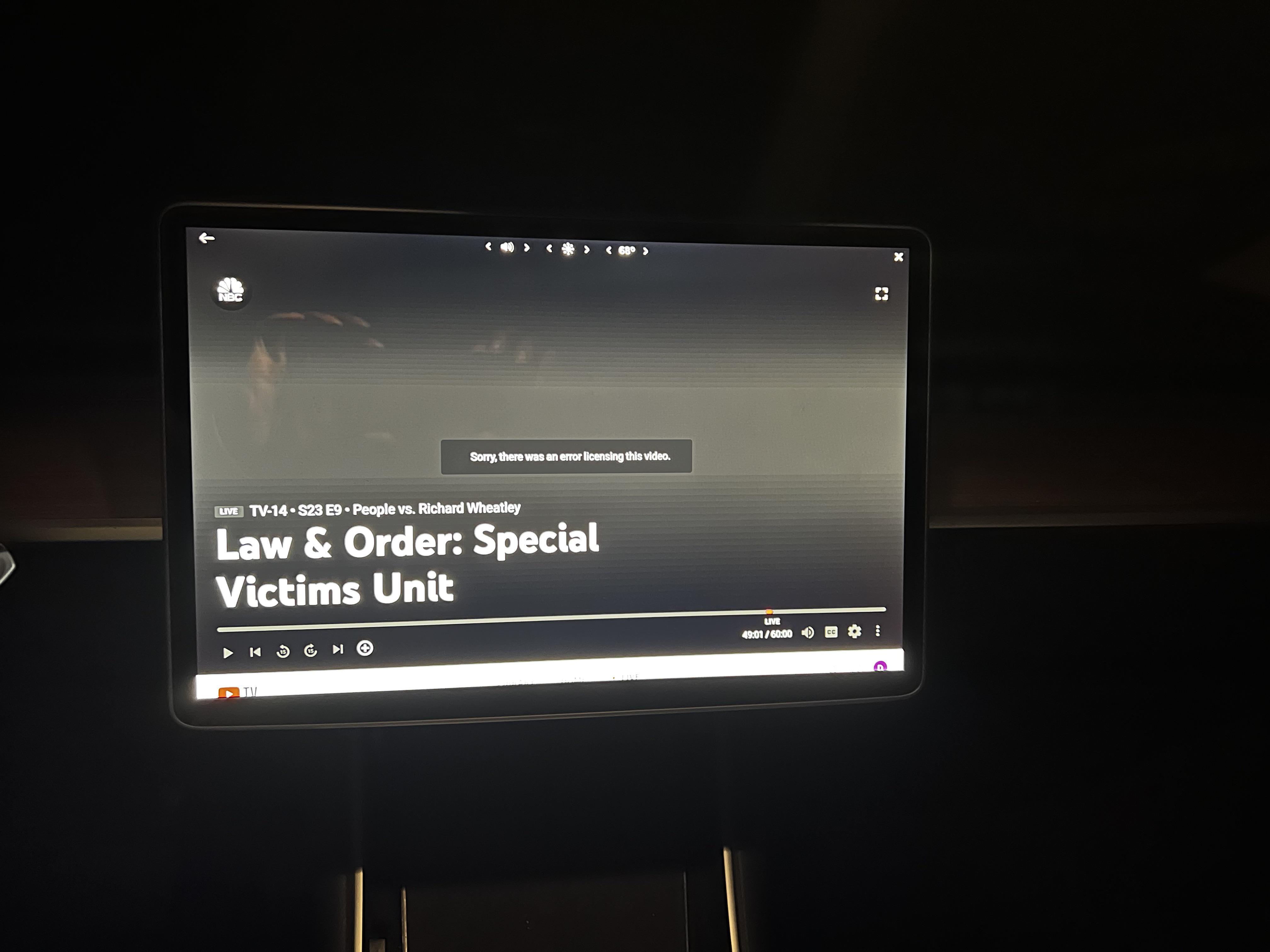
Ever been all set for ⁢a cozy binge-watching ⁤session on YouTube TV,⁤ only to be greeted by a ⁣pesky licensing⁣ error? You’re not alone. In the ‍ever-evolving world of⁢ streaming, ‍these hiccups can feel like unwelcome plot twists ‌in your entertainment⁤ journey. But don’t let ⁤a technical⁣ glitch steal the show! ‌Whether it’s a blackout message, a ⁣playback restriction, or a‍ mysterious error code,⁢ there’s⁢ often a fast fix waiting in the⁤ wings. This guide‌ is your backstage pass to troubleshooting‌ YouTube TV licensing ⁣errors with ease.⁢ No tech wizardry required—just simple,actionable ⁣steps‌ to get you back to your favorite‌ shows in ​no time. Let’s dive in and reclaim‌ your streaming‍ peace of mind!
Understanding YouTube ​TV Licensing Errors and Common Causes

Understanding YouTube TV Licensing⁢ Errors and Common Causes

YouTube TV ⁤licensing errors can be frustrating,‍ especially when you’re in the middle of watching your favorite ⁣show or live event.‍ These errors often⁤ occur due to geographical restrictions,‍ device ‍compatibility issues, or account-related ⁣problems. As a notable example, if you’re traveling outside your home area, YouTube TV may block access to certain content due to licensing agreements. Similarly, ⁤using an⁢ unsupported⁤ device ‌or having an outdated app version can ⁢trigger these errors.⁢ Understanding these common causes is the first step toward resolving them quickly.

Here’s a quick breakdown of the most ⁣frequent culprits ​behind licensing errors:

  • Location ⁤Restrictions: ‍ Content availability varies by region due to licensing agreements.
  • Device Limitations: Some devices may not support YouTube TV’s⁤ full⁣ features.
  • Account Issues: Incorrect account settings or‍ multiple logins can cause ⁤conflicts.
Error Type Possible Cause
Content Unavailable geographical restrictions or expired licenses
playback Blocked Unsupported device or outdated ⁣app
Account Conflict Multiple logins or incorrect settings

Effective Troubleshooting Steps⁢ to⁤ Resolve Licensing ⁢Issues

Effective troubleshooting Steps to Resolve Licensing Issues

encountering licensing errors⁤ on YouTube TV can be frustrating,but⁣ a few strategic steps can help you get back ⁤to streaming seamlessly. ‍ First, ensure ⁢your ⁣app is up to⁣ date,​ as outdated versions ⁤often lead to compatibility issues. Next, clear the cache and cookies from your browser or device⁢ to remove any corrupted data ‍that might be causing the problem. ‌If the issue persists, ​ check ‌your internet​ connection ​—‌ a stable and strong connection is crucial for licensing verification. log out and log back in to refresh your account settings and licensing permissions.

For a more ‍organized approach, refer to the table below for quick⁣ troubleshooting steps:

Step Action
1 Update the YouTube TV app
2 Clear cache and cookies
3 Verify internet connection
4 Re-login to your account

Essential Tips to Prevent Future licensing⁣ Problems ​on YouTube TV

When it comes to avoiding licensing issues on ‍YouTube TV, a proactive approach is your ⁣best defense. Start by ensuring your billing facts is up-to-date to⁣ prevent account interruptions that could trigger errors.⁤ Regularly verify your‍ location settings since incorrect regional data often leads to licensing conflicts. additionally, clear your cache ​and cookies ⁤ periodically to avoid outdated data interfering with your ‌streaming experience. Lastly, stay​ informed about channel availability in your area, as content rights can change without ⁤notice.

Here’s a quick reference table to ‌help⁤ you manage potential licensing pitfalls:

Action Benefit
Update billing details Prevents account interruptions
Verify location settings Avoids regional licensing conflicts
Clear cache and cookies Ensures accurate streaming ​data
Monitor channel​ availability Keeps you ⁣informed of content ​changes

when⁤ to Seek ⁣Professional Support for ⁤Persistent YouTube TV Errors

Sometimes, ⁤persistent YouTube TV licensing errors require more than DIY troubleshooting.If you’ve tried⁣ all the basic fixes—like restarting your device, ⁣updating the app, or reinstalling it—but the issue persists, it​ might potentially‌ be time to ⁤ seek professional ⁢support.Certain complex errors, such as ​authentication failures or ⁤geo-restriction problems, often stem ‌from ​deeper technical glitches⁤ or account-specific ⁤issues. Professionals can help⁣ diagnose⁤ these problems efficiently, ensuring you don’t waste time on endless trial-and-error methods.

Here are some scenarios ⁣where expert ⁤intervention might‍ be necessary:

  • Repeated login failures despite ⁢correct credentials.
  • Errors tied to ​specific devices or network configurations.
  • Licensing ⁢issues that prevent access to premium content.
Scenario Action
Content unavailable in ⁣your ​region Consult with support ‍to verify geo-restrictions
App crashes consistently Reach out for device-specific troubleshooting

In Retrospect

Outro:

And there you have it—your toolkit for tackling‌ those pesky YouTube TV licensing errors ​with ease.While these hiccups ‌can⁤ feel like a roadblock, they’re often just ⁤a temporary detour on your streaming journey. With these quick⁣ fixes at your fingertips, you’re equipped​ to reclaim ⁤your screen time⁤ and dive back⁢ into the​ content you love. Remember,tech glitches are no‌ match for a⁤ little patience and ​know-how.‍ So, the next time a licensing error pops up, don’t let it ⁢steal the spotlight. Instead, take ‌a deep breath, follow these steps, and let the show go on.⁤ happy streaming!