Unlocking Your Zoom Recordings: A Guide to YouTube Retrieval

Ever hit record on a Zoom call,only to realise later that ‍your brilliant⁣ presentation or crucial meeting is buried in a maze of files? Or maybe you’ve wanted ⁣to share that insightful webinar—but only after polishing it up first. ⁤Whether you’re a content creator, ⁣educator, or remote collaborator,​ your Zoom recordings hold value beyond the virtual room.

This guide walks you through the seamless ‍process of retrieving, refining, and uploading your Zoom sessions to YouTube. From locating hidden files to optimizing them‌ for a wider audience,we’ll help you unlock the full‌ potential of your recordings—one click at a ‌time. Let’s turn those forgotten files into shareable gems.

Locating your Zoom Recordings for YouTube Upload

Ever recorded an amazing Zoom session and struggled to find the file later? Whether you saved it locally or to the cloud, retrieving your recording is the first step toward ⁣sharing ‌it on YouTube. Here’s where to look:

  • Local recordings: Check your computer’s default Zoom folder (usually under Documents/zoom) or the custom path‍ you set in Zoom’s settings.
  • Cloud recordings: log in to your Zoom web portal,⁢ navigate to Recordings, ⁣and filter by date or meeting ID.
Storage Type File Format Typical Location
Local MP4, ⁤M4A Documents/zoom/[meeting Name]
Cloud MP4, M4A, TXT Zoom web portal > ​Recordings

Once located,‍ ensure the file is optimized for YouTube—trim unneeded sections, enhance audio, and add captions⁣ if needed. Cloud recordings may require⁣ downloading ⁣before editing, while local files are ready to go. Pro tip: Rename files clearly before uploading to avoid confusion in⁤ your YouTube library!

optimizing Video Quality Before Sharing on YouTube

Before uploading⁢ your Zoom recordings⁢ to YouTube, ensuring optimal video quality is crucial for engaging your audience. ⁢Start by exporting your recording in the highest resolution available, preferably 1080p or ‍higher. Use editing software to trim unnecessary sections and enhance visual elements like brightness, ⁢contrast, and color balance. ⁤Pay attention to⁢ audio clarity—remove background noise and ensure voices are crisp. Compressing the file without sacrificing quality is essential; tools like HandBrake or Adobe Media Encoder can help maintain a balance between size and sharpness.

Consider​ these additional tips to elevate your​ video before sharing:

  • Add captions or subtitles ⁣to improve accessibility and viewer retention.
  • Use an eye-catching thumbnail to entice clicks and convey the video’s content.
  • Optimize metadata with relevant tags, a concise title, and a detailed description.
Aspect Tool Recommendation
Video Editing Adobe Premiere Pro
Audio Enhancement Audacity
File Compression HandBrake

Essential Settings for Smooth YouTube Playback

To ensure your Zoom ‍recordings play seamlessly on YouTube, it’s crucial to optimize a few key settings.​ First,check your video resolution ‍and frame rate—recordings in 1080p at 30fps typically provide the best ⁣balance between quality and file size. Second,compress your files using tools like HandBrake or Adobe media ⁣Encoder to reduce upload times without compromising clarity. Finally, ensure your internet connection is stable; a wired connection is ideal for⁤ uploading large‍ files.

Here’s a ⁢quick checklist to streamline your workflow:

  • Set resolution to⁤ 1080p or 720p.
  • Use ‌AAC audio encoding for compatibility.
  • Enable hardware acceleration ​during‍ export.
  • Test playback on multiple devices before uploading.
Setting Recommended Value
Resolution 1080p
Frame Rate 30fps
Audio Encoding AAC

Best Practices for Organizing and Managing Uploaded Content

Efficiently managing your Zoom recordings before uploading them to YouTube is essential for maintaining clarity ‍and accessibility. Start by categorizing your recordings based on their purpose, such as webinars, meetings, or tutorials. Use concise and descriptive file names that ‌include dates or topics to make⁤ retrieval easier later. Create ⁣a dedicated folder structure on your computer⁤ or⁢ cloud storage ⁣to ‌store these recordings systematically. Organize them by month, project, or event⁢ type to streamline the process.

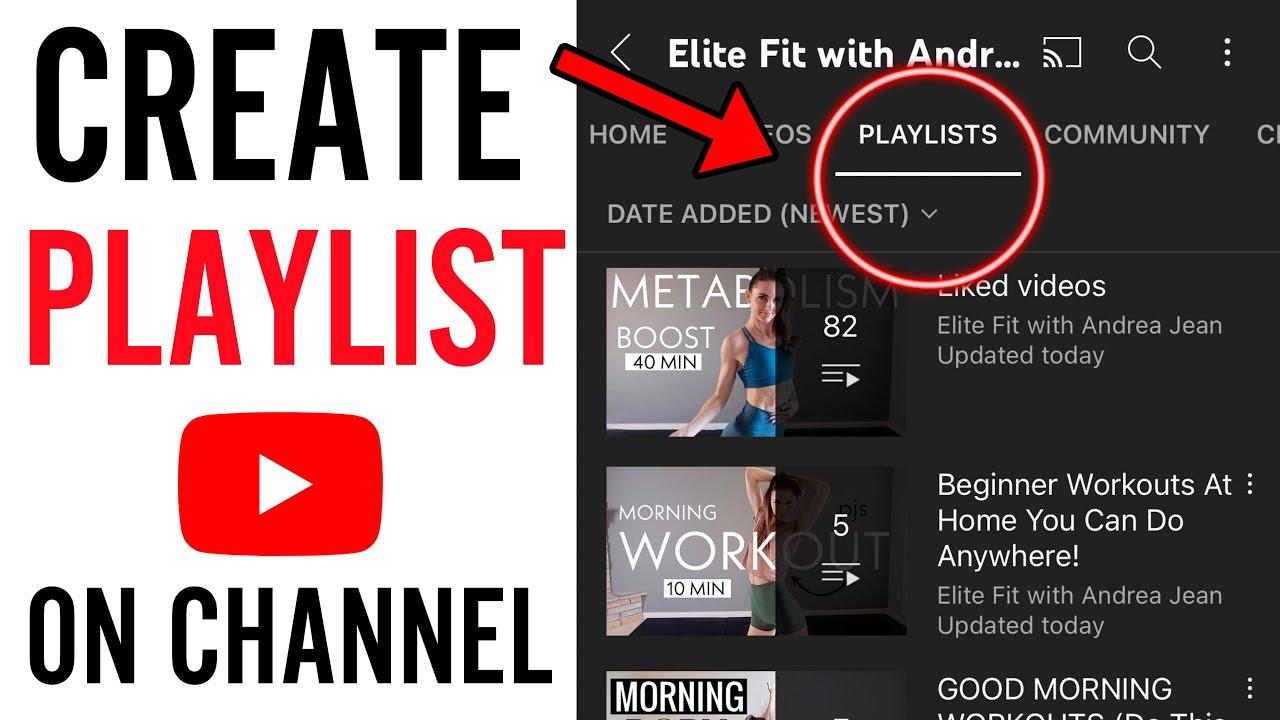
Once uploaded to YouTube, leverage tags and playlists to enhance discoverability. As an example, tags should include relevant keywords like “Zoom recording,” “webinar,” or “training session.” playlists can​ group related​ videos together, making it simpler for viewers to find content. Additionally, consider ‍using the table below to plan your video organization strategy:

Attribute Example
File Name WebinarMarketing2023-10-15
Tags zoom, Webinar, Marketing
Playlist Marketing Webinars 2023

By implementing these practices, you’ll save time and ensure your content remains well-structured and easy to access.

Wrapping Up

Outro:

And there you have it—your Zoom recordings are ⁢no longer trapped in the digital void! With these simple steps, ⁣you’ve unlocked the power to ​share, archive, or repurpose your meetings with ease. Whether ‌you’re a content creator, educator, or just ‍someone who values preserving virtual moments, YouTube now ‌stands ready as your go-to hub.So go ahead—upload, engage, and let your sessions find their audience. The next great idea or insightful discussion might ​just be a click away from ‍reaching the world. Happy uploading! 🚀
Unlocking the Mystery: What Does Privating YouTube Videos Truly Mean?

In​ the ever-evolving digital landscape,YouTube remains a cornerstone of​ content creation,storytelling,and community engagement. Yet, behind the ​scenes, ​creators ‍navigate a⁤ labyrinth of⁣ decisions‍ to shape their online ‍presence—decisions ⁢that often⁣ hinge on the enigmatic concept of ‌”privating” videos. What‍ does ⁤it ⁣truly⁢ mean to‌ privatize ​a ‍YouTube‌ video? Is⁤ it a ⁤protective shield, a strategic move, or ​a ⁢silent‌ retreat? This ⁣article delves into the nuances of this seemingly⁣ simple​ feature, unraveling its implications⁣ for creators, audiences,‌ and​ the ⁣broader⁤ YouTube⁣ ecosystem. Whether you’re a seasoned YouTuber‍ or a⁤ curious viewer,prepare to ⁤unlock the mystery​ behind this often-overlooked tool and⁢ discover its multifaceted role⁤ in⁤ the digital realm.

The Hidden⁤ Implications of Privating ‍YouTube ‍Videos

Privating a YouTube⁢ video might seem like a simple toggle in your dashboard,but it carries deeper implications than meets the ​eye. While⁢ it ‍hides the video from​ public view, ‌it doesn’t erase its ‍existence or ​its impact. For creators, this ‍feature can be a ⁢double-edged sword: it offers control over accessibility ‍ while possibly disrupting engagement metrics or audience expectations.⁣ Viewers who⁣ once ⁣interacted with the⁣ content may be ​left puzzled,⁤ questioning its sudden disappearance. Additionally,privated videos can still be accessed by those with direct links,raising questions about ​ true privacy and ⁢the‌ extent of its⁣ effectiveness.

The decision to ⁢private a video ⁣often reflects ‍strategic considerations.⁢ Below are ⁣some key aspects⁤ to⁣ ponder:

  • Content strategy ⁢recalibration: ‍ Privating videos allows ‍creators to ⁣reassess their content without⁢ permanently deleting it.
  • Audience ⁣trust: ⁤ Frequent privating⁤ can confuse subscribers and erode ‌trust if not communicated transparently.
  • Algorithmic impact: Removing ⁤videos from public view can affect channel ⁣performance, ‌as‌ YouTube’s ‌algorithm ‍thrives on consistent engagement.
Aspect Impact
Accessibility Limited to select viewers
Engagement Likes/comments become‌ static
SEO Loss of search visibility

How Privating affects Your Channel’s visibility and Growth

Privating videos on YouTube can ‍have a significant impact on your ⁣channel’s visibility⁣ and growth. When a video‌ is set to private,it ⁤disappears from public view—meaning it won’t ⁣appear in search‌ results,recommendations,or subscribers’ feeds.⁢ This‍ can disrupt your channel’s momentum, especially ​if‍ the video was gaining traction.Here’s how privating affects key⁣ aspects:

  • Search Rankings: ‍ Private videos ⁤don’t contribute to your ⁤channel’s ​SEO, ⁤potentially lowering your ⁤overall⁣ discoverability.
  • Watch Time: ​ Removing​ a video cuts its⁤ watch time ⁤from ‍your analytics, which‌ may ⁢hurt your ranking in YouTube’s‌ algorithm.
  • Engagement: Comments, likes, and​ shares are frozen, halting community interaction.

For ‌creators weighing whether to private a video, ⁣consider the trade-offs.While privating can definitely⁤ help manage content⁣ quality or ‌compliance issues, it may also reset ‍progress on‌ audience retention ‌and algorithmic favor. ‍Below is a quick comparison⁤ of⁤ public‍ vs. private ⁤video‌ performance:

metric Public‍ Video Private Video
Search Visibility High None
Algorithmic ⁢Boost Possible Lost
Audience‍ Growth Continues Paused

Step ‍by ‍Step Guide to ​Privating Videos Without Losing⁢ Engagement

Privating YouTube videos can be ⁣a strategic move ⁣for content⁢ creators, ensuring⁢ content remains exclusive without‌ losing audience interest. Here’s how to ‌do it ⁤effectively: Start by reviewing ​your video⁤ analytics to ⁤identify​ which‍ content benefits most from privacy. Next, ⁣craft a brief update​ or⁤ teaser to inform your audience ⁤about the ‍change, ​keeping them engaged. utilize playlists and community posts to ⁢redirect viewers to​ other public content, maintaining⁣ their ‌interest in your channel.

Consider these quick⁤ tips‌ for a smooth ​transition:

  • Communicate‍ Clearly: ⁢Announce ⁣the ‍change via social ⁤media‍ or ‍a pinned comment ⁢to avoid confusion.
  • Leverage Alternatives: Replace privated videos⁢ with updated ‌or improved ⁢versions.
  • Monitor ‍Engagement:⁣ Keep⁢ an⁢ eye on ‌audience reactions and adjust your ⁤strategy ​accordingly.
Action Benefit
Private Old Content Keeps your channel ⁣fresh‌ and relevant
Engage with Subscribers Builds trust and maintains‌ loyalty

Best Practices‍ for Managing Private​ and Public Content on YouTube

Managing private and ⁤public content on youtube⁢ goes beyond simply‍ choosing visibility settings. Privating ⁢a video doesn’t ‌delete⁤ it;‌ it merely restricts access to you ‍and those you manually invite. This‌ feature is perfect ⁤for temporarily hiding ⁢content from⁢ public view ⁢while⁤ preserving analytics and engagement ‍data. Though,it’s‌ essential to understand how​ privating videos impacts ‌your ⁣channel’s performance​ and viewer ​experience. ‍For⁣ creators, ‍this tool ‍can be a ​strategic⁣ asset for refining content or preparing for a bigger reveal.

Key ‌considerations‌ for privating​ videos:

  • Audience Control: Ensure only ​selected ‍viewers can access private⁣ videos,ideal for ⁤beta testing or sharing exclusive content.
  • Analytics Retention: Private⁣ videos‍ retain their⁢ views, ⁤likes,‌ and comments, ‍helping you⁢ analyze performance before re-releasing them.
  • SEO Impact: ⁣Privating a video⁤ removes it⁣ from search‍ results, which can⁤ affect ⁣your channel’s‍ discoverability.
Visibility Access SEO Impact
Public Anyone High
Private Selected Users None
unlisted Link Holders Low

The Conclusion

As we wrap ‍up our exploration into​ the ⁣enigmatic world ​of privating YouTube videos, one thing ⁣becomes clear: this feature⁣ is far more ‌than a ​simple ​toggle switch. ‌It’s a nuanced ‍tool, a ‌digital‌ curtain that creators can draw to recalibrate, protect, or refine their content—without⁤ fully ‍letting ​go. ​Whether​ it’s​ about ⁣preserving a moment, safeguarding privacy, or strategically‍ managing viewership, privating a video is ​a deliberate ⁢act, a whisper of control ⁢in the⁣ cacophony​ of the ‍internet.

So,​ the ‌next⁢ time you stumble upon a “Private Video” notice⁢ or contemplate ‍hitting that settings button yourself, ‍remember: behind every‍ privated⁣ video ⁣lies‌ a story, a‌ reason, and‍ a quiet ‍assertion of​ ownership in the‍ ever-evolving digital stage. The mystery may be unlocked, but its applications⁤ remain as varied‌ and ⁣intriguing as the creators who wield it.

Can Your Playlist Handle Every YouTube Video?

In the‌ age of endless digital content, our playlists⁤ have become the curated soundtracks of our lives.They accompany us through commutes, workouts, ​late-night study sessions,⁤ and everything in between. But‍ what happens when the vast,‍ ever-expanding ⁤universe of YouTube videos—from obscure ⁣covers to viral remixes, from lo-fi beats to ⁢epic mashups—confronts your ‌carefully crafted playlist? Can it adapt, ‌evolve,⁤ and absorb ⁤the‌ infinite⁢ variety ​of‌ audio-visual experiences YouTube has to ⁢offer? ​This ⁢article dives ​into ⁢the intriguing ⁤question: Can ⁣your playlist handle every YouTube⁢ video? Join us as we explore the challenges, possibilities, and the⁣ surprising potential ​of playlists in a world where⁢ the⁢ only limit is ⁣the upload ‍button.
The Science ⁣Behind playlist Versatility Across YouTube Content

The Science Behind‍ Playlist Versatility ⁤Across‌ youtube Content

When ⁣curating ‍playlists ⁣on YouTube, ⁢the ability to handle diverse content is not just a feature—it’s an art. Versatility ⁣ in​ playlists ensures⁢ that they can seamlessly transition between genres, moods, ​and formats without⁣ losing their⁤ appeal.Think of a playlist‍ as a‍ chameleon, ‍adapting ​to ‌different types of videos while maintaining its core identity. This adaptability⁣ is rooted ⁢in how well⁣ the‍ playlist’s structure and content resonate ⁤with the ‍viewer’s​ expectations.

to achieve this, consider the following elements:

  • Dynamic ‍Content mix: Balance varied ‌video⁤ types—such ⁤as tutorials, vlogs, ​and⁤ music—within the⁤ same playlist ​to keep viewers engaged.
  • Consistent⁣ Theme: Ensure there’s⁣ an overarching theme or narrative that⁤ ties the ⁤playlist together, even​ if ‌the ‍content⁣ differs.
  • Audience ​Insights: use analytics ‌to understand what‌ your ⁢audience enjoys and tailor the ⁤playlist to⁣ their preferences.
Playlist ‍Type Key Features
Genre-Specific Focused on ⁢a single category, ⁣like comedy or tech reviews.
Mood-Based Curated to evoke specific emotions, such as relaxation or motivation.
Mixed-Content Combines‌ various ⁢formats, catering​ to diverse viewer interests.

curating⁤ a Playlist That⁤ Adapts ‌to Every ⁢Video Genre

Curating a​ Playlist That ⁣Adapts to Every Video Genre

Creating‌ a⁤ playlist ‌that seamlessly complements ⁣every YouTube video genre is‌ no ‍small⁢ feat. It requires a keen understanding of how‌ music influences the viewer’s experience. ⁢ For‍ example:

  • Action Videos: high-energy tracks with fast ⁤beats ⁣amplify the intensity.
  • Travel ⁣Vlogs: Ambient, soothing​ melodies evoke a sense⁢ of wanderlust.
  • Tutorials: ‍ Subtle, instrumental ‌music keeps the ⁣focus‍ on the ‌content.

The right playlist can elevate the mood, maintain engagement,⁤ and even‍ reinforce your‌ brand’s​ identity. But​ how do you‌ ensure your playlist ⁣is versatile‌ enough ‌to handle such diverse demands?

Genre Music Style Purpose
comedy Light, playful tunes Enhance humor
Documentary Minimalistic, dramatic Add depth
gaming Epic, cinematic Boost excitement

With thoughtful curation,⁣ your⁣ playlist can become a dynamic tool that adapts to⁢ any​ video, ⁣ensuring your audience stays ⁤hooked⁣ from start⁢ to finish.

Optimal ⁤Tools and ‌Features for Seamless Playlist Management

Managing a YouTube playlist ⁣should ‍feel effortless, whether you’re curating content for personal enjoyment or ⁢professional⁣ use. The‍ right tools can ‍transform⁢ chaos into⁢ order, ensuring every video finds its perfect spot.Key features to look for include:

  • Smart⁢ Sorting: Auto-arrange videos by date, popularity, or custom rules.
  • Bulk Editing: Add, ⁤remove, ⁢or rearrange multiple clips​ in seconds.
  • Offline Access: ​Download playlists for uninterrupted ⁢viewing anywhere.
  • Collaboration: ‍ Invite others to contribute without losing ​control.

For those who demand ⁣precision,⁤ advanced playlist⁤ managers offer even deeper customization.⁢ Below is ​a quick comparison of must-have functionalities:

Feature Basic Tools Advanced ⁢Tools
Tagging manual only AI-powered suggestions
Duplicates Manual ⁣check Auto-detection
Privacy Public/Private Password-protected

Tips to Ensure ‌Compatibility​ and‌ Quality Across ‍Diverse YouTube Videos

Creating a ⁤playlist that seamlessly⁢ accommodates diverse YouTube videos requires strategic planning. Understand your audience and‌ curate content that aligns​ with their interests ⁢ to ensure relevance. Use a mix‍ of formats—such as tutorials, vlogs, and‌ reviews—to keep ​the playlist engaging. Optimize video lengths to maintain consistency, ‍avoiding abrupt​ transitions ‍between short and long⁣ clips. Additionally, ensure all​ videos meet ⁣a certain quality standard​ by checking resolution, audio clarity, ⁢and overall production value. ⁢A well-rounded playlist​ not ​only enhances user experience but also boosts‌ retention⁢ rates.

Tip Action
Theme ⁤Consistency Keep videos⁣ aligned with a central ‍theme or​ topic.
Seamless Transitions Arrange videos to ⁤flow‌ naturally from ‍one to ‌the ​next.
Regular Updates Refresh the⁣ playlist with new content to keep ‍it​ current.

To maximize compatibility, test ‌your⁤ playlist across devices—desktop, mobile, and smart⁢ TVs—to ensure ⁣flawless playback. Leverage YouTube’s⁣ built-in‍ tools,like the⁢ “Add⁢ to Playlist”‌ feature,to simplify curation. ​Avoid ⁢overcrowding; a playlist ​with 20–30 videos strikes ⁤the perfect ​balance between‍ variety and‌ manageability.​ Lastly, monitor analytics ‍to ‍identify which videos perform best ⁣and refine your strategy ‌accordingly. A thoughtfully crafted playlist not only ‌showcases ⁣your content ​but also enhances ⁣viewer satisfaction and⁢ loyalty.

Insights and Conclusions

As⁣ the digital symphony of⁢ YouTube continues to ‌expand,the question‌ lingers: can your playlist keep up with the endless rhythm of ⁤videos? Whether it’s a curated mixtape of nostalgia,a relentless ‌stream​ of finding,or a perfectly balanced blend ‍of both,the power to shape your auditory​ and visual journey lies in your hands.The‌ platform’s boundless library is a canvas, ​and your⁣ playlist ‍is the brush—paint with intention, experiment with variety,‍ and⁢ don’t ‍be afraid ⁤to hit shuffle when curiosity⁢ calls. In this‌ ever-evolving soundscape,adaptability is key.So, ⁢as‌ the next video⁢ loads, ask yourself: is your ‌playlist ready for the encore, or ⁢is it time to⁢ remix the ⁣experience? The choice, as always, is yours.

Mastering YouTube: Effortless Video Playlist Downloads

In the⁢ ever-expanding universe ⁤of digital ‍content, YouTube reigns​ supreme ⁢as a treasure⁢ trove of videos for every ​interest imaginable. ⁤weather you’re diving into educational tutorials, binge-watching your favorite series, or curating playlists for inspiration, ⁤the⁣ platform ⁣offers endless ​possibilities. But what happens when you want to take‌ your favorite playlists‍ offline, free from the constraints of⁢ an internet connection? Enter the ⁢art of‌ effortless YouTube video playlist downloads—a skill that bridges convenience and creativity. This guide unlocks ⁤the⁣ secrets to seamlessly saving‍ your curated collections, ensuring your favorite content is ⁣always ⁢at your​ fingertips,​ anytime, anywhere.
understanding ⁣the Basics ‌of YouTube Playlist Downloads

Understanding the Basics ⁣of YouTube playlist ⁢Downloads

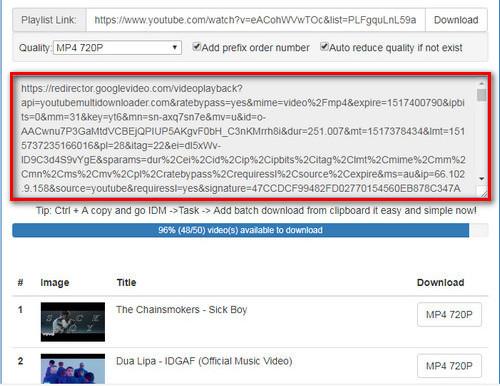
YouTube playlists are ‍a fantastic ‍way to organize and ​enjoy ⁤content, but downloading them‍ can seem daunting. ‍With the right tools‌ and‍ techniques,though,it’s​ surprisingly straightforward. First, ensure you have reliable software or online‍ services that⁤ support batch‍ downloads. second, verify that ​the platform respects copyright laws and YouTube’s terms of service. ⁣Many tools allow you to​ download entire playlists in ⁢one go, saving ⁢you ⁤time and effort.

When downloading playlists,prioritize quality and format. Most tools let you choose between ⁣ MP4,⁣ MP3, or other⁤ file ⁣types.⁤ It’s also ⁤essential‍ to check⁣ the resolution,⁤ especially if you plan to watch the videos offline on larger screens.Below is a simple comparison of popular formats:

Format Best ⁣Use
MP4 High-quality video ⁤playback
MP3 Audio-only ⁣listening
720p Balanced quality for smaller screens
1080p Sharper​ visuals for larger ‍displays

By understanding these basics, ⁣you’ll be well-equipped to ​download YouTube playlists effortlessly and enjoy your​ favorite ​content ⁤anytime, anywhere.

Exploring Tools and Software for Seamless ​Downloads

Exploring‌ tools ⁢and Software for Seamless Downloads

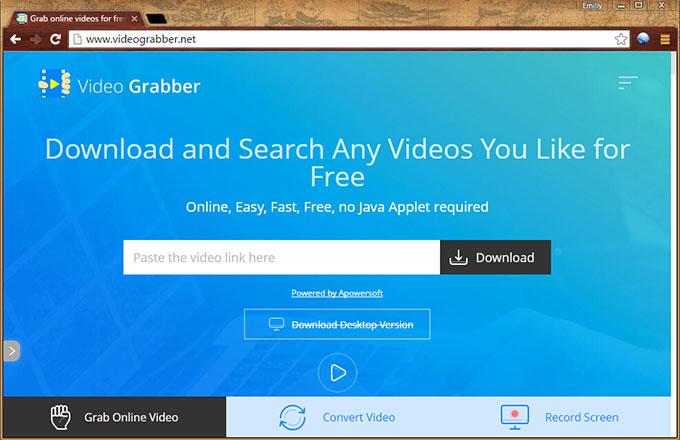
When it comes to downloading YouTube⁤ playlists,‍ having the right tools can make​ all‌ the difference. Popular software like 4K Video Downloader and YT-DLP ‌offer robust ⁤features for seamless downloads. These tools ‌support batch downloading,allowing you to​ grab entire playlists in one go. ⁤Additionally,⁢ platforms ⁤such as SaveFrom.net ‌ provide browser​ extensions for quick access⁤ without leaving your browser.‍ Here are ⁤some ​standout features:

  • Batch Downloading: Download multiple⁣ videos together.
  • format Options: Choose⁤ from MP4, MP3, ⁤or ​other‌ formats.
  • quality Control: Select resolutions up ‍to 4K ‌for​ pristine video quality.

For wordpress users,⁣ integrating⁣ download capabilities into your site is⁢ straightforward ‍with plugins. TablePress plugins⁤ can ⁣be customized ⁣to display download‍ links or ​instructions clearly. Below is an example of ​how ⁣tools‌ compare ⁢in terms of ‌features:

Tool Batch Download Format Options Quality
4K Video downloader Yes MP4, MP3 Up to 4K
YT-DLP Yes Multiple Customizable
SaveFrom.net No MP4, MP3 Up to 1080p

Optimizing Your Playlist Download Experience

When ⁣it comes to downloading ⁢YouTube video playlists, efficiency ⁤and quality are key.Start by choosing a reliable downloader tool ‌that supports bulk​ downloads and maintains high-resolution output. Look for features like automatic ⁤format detection ⁤ and ‌ customizable download folders to streamline‌ the‌ process.Additionally,ensure the tool ⁢is compatible with ‍your device and⁤ operating system for seamless integration.

To​ further enhance⁤ your ⁤experience, consider these pro tips:

  • Organize⁢ your playlists‌ beforehand to avoid clutter in your ⁤downloads.
  • Use tools that allow background downloading to multitask efficiently.
  • Opt for software‍ with ⁤ built-in converters ⁣to ‍save‍ time on post-processing.
Feature Benefit
Bulk Download saves time by downloading multiple videos at once
High Resolution Ensures premium ⁣video quality
Background⁢ mode Allows ⁢multitasking⁤ without ​interruptions

Ensuring ⁢Compliance and Ethical Considerations

When downloading YouTube‍ video playlists,‍ it’s crucial to adhere to legal and ethical standards. ‍Always ensure that the ⁢content you’re downloading ‍is either in the public domain or you have the​ creator’s explicit permission. ‌Unauthorized‌ downloads can violate ‍copyright laws and harm content creators who rely ‌on views ‌and ad revenue. Additionally, respect the platform’s terms of service, as bypassing restrictions can ⁤lead to penalties or account ⁤suspension.

Consider the following ethical​ practices when downloading playlists:

  • Use legal tools: ⁢ Opt ​for software or applications that ⁢comply with YouTube’s policies⁣ and ‍guidelines.
  • Avoid‍ redistribution: Don’t share downloaded content ‍without proper authorization,⁣ as it undermines creators’ rights.
  • Check licenses: Verify ⁢if the videos are under creative Commons or other open licenses that allow downloads.
Action Compliance Check
Downloading Ensure videos⁣ are for ​personal use or authorized by the creator.
Sharing Only redistribute if the license permits it.
Tool ⁢Selection Use tools that​ respect‌ youtube’s terms⁢ and conditions.

future ⁣Outlook

“” has⁣ equipped you with the‌ tools to ‍seamlessly curate your digital⁣ library, transforming endless scrolling⁢ into organized collections of inspiration, education, and‍ entertainment. As you venture ‌into ​this ​world of streamlined content, remember that‌ technology is your ally—empowering ‍you to access knowledge and creativity at your fingertips. So⁢ go ahead,download with ​confidence,and let your⁣ personalized playlists⁤ become the⁤ soundtrack to your ⁣journey. The power to master YouTube‍ is now yours; wield it wisely and enjoy ⁢the freedom it⁣ brings. Happy downloading! 🎥✨