Wiping the Slate: How to Delete a YouTube Playlist Easily

In the ever-evolving​ landscape of digital content, YouTube playlists⁣ serve as ‌curated havens for our ⁢favorite videos—whether they’re workout routines, cooking tutorials, or late-night comedy binges. But as tastes shift and interests evolve, what once sparked joy might now⁣ clutter your profile ​like an old gym membership. Enter ‍the art of “wiping the ⁤slate clean.” Deleting ‍a YouTube playlist isn’t just about decluttering; it’s a ⁢small yet empowering act of renewal, making space ‍for⁣ fresh inspiration. If you’ve ever wondered how to bid ‌farewell to those⁤ playlists that ⁣no​ longer ‍align with your⁢ vibe, you’re in the ⁣right place. Let’s dive into the simple steps to‍ streamline ⁤your YouTube experience and reclaim your digital canvas.

Deleting Your YouTube Playlist: A⁢ Step-by-Step Guide

Whether⁤ you’re decluttering your channel or simply starting fresh,‌ removing an outdated playlist is a breeze.here’s how to do it in a few clicks:

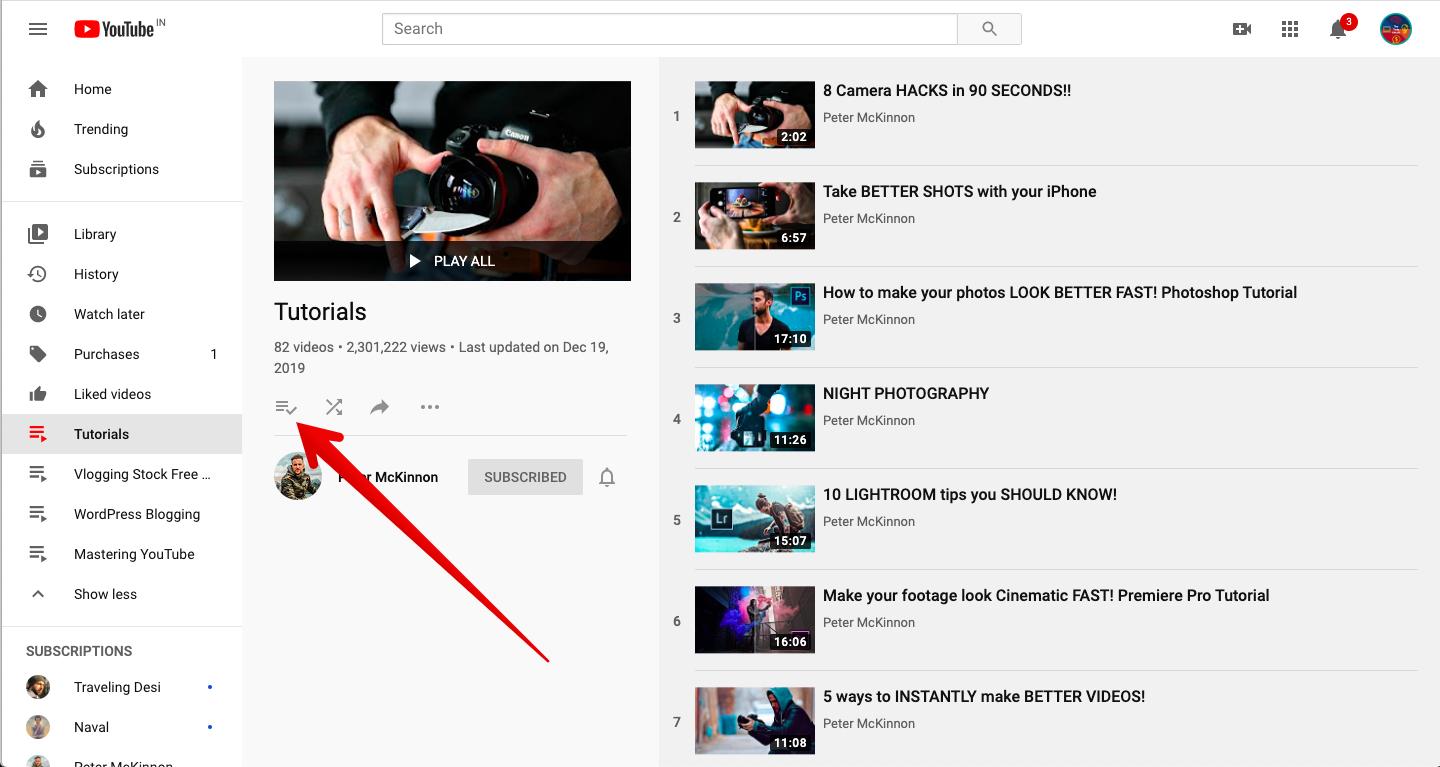
  • Navigate to “Library” in‌ YouTube’s⁤ left-hand menu.
  • Select “Playlists” and find the⁣ one you want to ⁣remove.
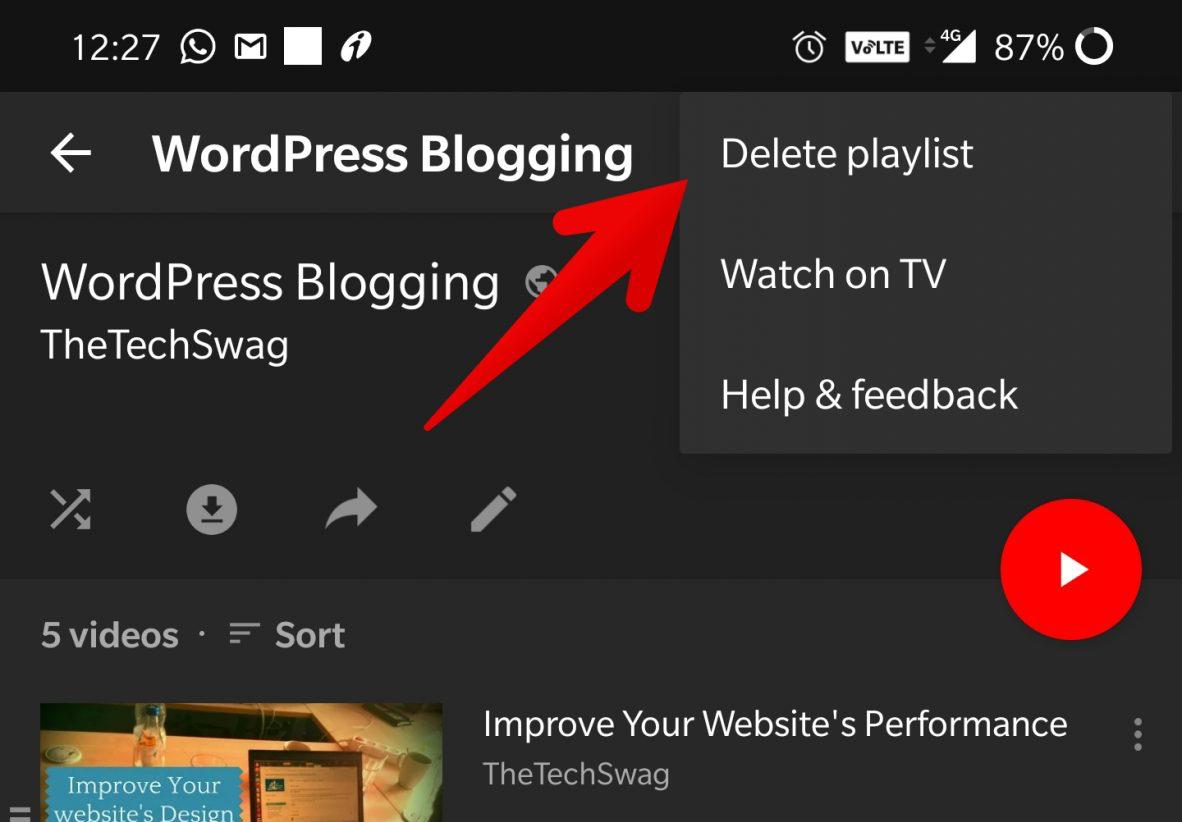
  • Click the three-dot ‍menu ⁣next ‍to the playlist title.
  • Choose‌ “Delete‌ playlist” ‌and confirm.
Action Where to Find It
Access​ Playlists YouTube’s “library” section
Delete Option Three-dot menu next to playlist

If ‌you change your mind, remember that⁣ deleted playlists​ can’t be recovered. Double-check ⁣before⁤ confirming—especially if it contains cherished⁤ videos. ⁢For ⁢collaborative playlists, ensure all contributors are aware, as deletion affects everyone. A clean slate awaits!

Understanding the ‍Implications of Removing a Playlist

Deleting⁣ a playlist might seem like‍ a simple click, but it’s worth⁢ pausing to consider the ripple effects. Once‍ removed, the playlist and its curated‌ order vanish permanently—no undo button, no recovery from the trash. This ⁤means:

  • lost organization: Any thematic‌ grouping or custom arrangement disappears.
  • Broken shares: Links you’ve shared with others will lead to a dead end.
  • Analytics reset: Past data tied to the playlist is erased.
Before You⁣ Delete Quick Option
Export the playlist’s video list Make it private rather
Check‍ for embedded ​links Remove individual videos

think of playlists as digital‌ time capsules—each ‌one holds intent, whether it’s a workout mix or a research compilation. removing one is more than​ decluttering; it’s a purposeful act of letting go. If you’re certain, proceed—but if nostalgia or⁣ utility lingers, remember that editing offers a middle ground.

Alternative Solutions Before You⁤ Delete Permanently

Before you hit that permanent delete button, consider⁢ exploring alternative solutions ​that might better suit your needs.Deleting a‍ playlist⁣ isn’t always the ​only option—sometimes, a little‌ reorganization or repurposing can save you time‌ and effort. Here are a few creative⁢ alternatives:

  • Prune Your Playlist: ‌ Remove outdated ⁣or irrelevant videos‍ while ⁢keeping the ‌rest‌ intact.
  • make It Private: hide ‍your playlist from public‌ view without‍ deleting it ⁣entirely.
  • Duplicate and Edit: Create a copy⁣ of the playlist⁢ to experiment with changes before committing to deletion.

If you’re still unsure, here’s a quick comparison of deleting ​versus alternative actions:

Action Benefit
Pruning Retains valuable content while cleaning up clutter.
Making Private Preserves your playlist for future use without ⁢public visibility.
duplicating Allows experimentation without losing⁣ the original playlist.

Best Practices for Managing and Organizing Playlists in the Future

Managing your YouTube playlists efficiently ensures a clutter-free experience and makes it easier to find your favorite content. Here’s how to keep your‌ playlists organized ‍for the future:

  • Regular audits: Periodically⁣ review⁢ your playlists ⁢to remove outdated or​ unwanted videos.
  • Clear naming: Use descriptive titles‍ and emojis to make playlists instantly recognizable.
  • Collaborative curation: Share editing ‌access with trusted‌ friends to ⁤keep playlists fresh.
Action Benefit
Delete unused playlists Reduces digital clutter
Use folders (via third-party tools) Groups similar playlists together

Automation tools can also help‍ streamline playlist management—consider using ‌browser extensions or YouTube’s built-in features to auto-sort videos. For ‍example: setting up⁣ rules to auto-add videos​ from specific channels‌ or with certain⁣ keywords.This minimizes manual effort while keeping your library⁤ neatly organized.

Concluding Remarks

Outro:

And there ⁢you have ​it—your digital ​spring cleaning is complete! Whether ⁤you’re decluttering your channel, starting fresh, or simply reorganizing, deleting a YouTube playlist is now just​ a⁣ few clicks away. So go ‌ahead,clear the old to ⁣make ‍room for ⁤the new,and let your next‌ playlist be your ⁢best​ one ⁣yet. Happy curating! 🎬✨

Mastering YouTube: Effortless Video Playlist Downloads

In the⁢ ever-expanding universe ⁤of digital ‍content, YouTube reigns​ supreme ⁢as a treasure⁢ trove of videos for every ​interest imaginable. ⁤weather you’re diving into educational tutorials, binge-watching your favorite series, or curating playlists for inspiration, ⁤the⁣ platform ⁣offers endless ​possibilities. But what happens when you want to take‌ your favorite playlists‍ offline, free from the constraints of⁢ an internet connection? Enter the ⁢art of‌ effortless YouTube video playlist downloads—a skill that bridges convenience and creativity. This guide unlocks ⁤the⁣ secrets to seamlessly saving‍ your curated collections, ensuring your favorite content is ⁣always ⁢at your​ fingertips,​ anytime, anywhere.
understanding ⁣the Basics ‌of YouTube Playlist Downloads

Understanding the Basics ⁣of YouTube playlist ⁢Downloads

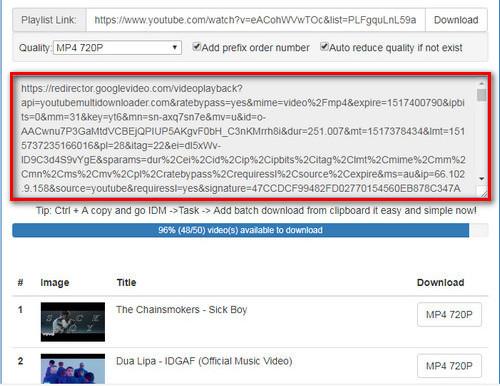
YouTube playlists are ‍a fantastic ‍way to organize and ​enjoy ⁤content, but downloading them‍ can seem daunting. ‍With the right tools‌ and‍ techniques,though,it’s​ surprisingly straightforward. First, ensure you have reliable software or online‍ services that⁤ support batch‍ downloads. second, verify that ​the platform respects copyright laws and YouTube’s terms of service. ⁣Many tools allow you to​ download entire playlists in ⁢one go, saving ⁢you ⁤time and effort.

When downloading playlists,prioritize quality and format. Most tools let you choose between ⁣ MP4,⁣ MP3, or other⁤ file ⁣types.⁤ It’s also ⁤essential‍ to check⁣ the resolution,⁤ especially if you plan to watch the videos offline on larger screens.Below is a simple comparison of popular formats:

Format Best ⁣Use
MP4 High-quality video ⁤playback
MP3 Audio-only ⁣listening
720p Balanced quality for smaller screens
1080p Sharper​ visuals for larger ‍displays

By understanding these basics, ⁣you’ll be well-equipped to ​download YouTube playlists effortlessly and enjoy your​ favorite ​content ⁤anytime, anywhere.

Exploring Tools and Software for Seamless ​Downloads

Exploring‌ tools ⁢and Software for Seamless Downloads

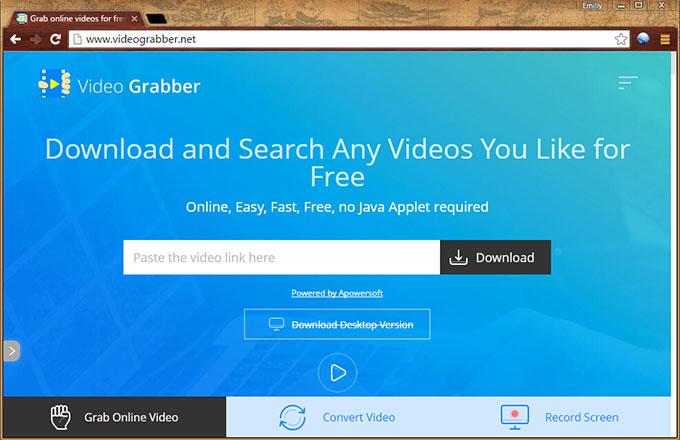
When it comes to downloading YouTube⁤ playlists,‍ having the right tools can make​ all‌ the difference. Popular software like 4K Video Downloader and YT-DLP ‌offer robust ⁤features for seamless downloads. These tools ‌support batch downloading,allowing you to​ grab entire playlists in one go. ⁤Additionally,⁢ platforms ⁤such as SaveFrom.net ‌ provide browser​ extensions for quick access⁤ without leaving your browser.‍ Here are ⁤some ​standout features:

  • Batch Downloading: Download multiple⁣ videos together.
  • format Options: Choose⁤ from MP4, MP3, ⁤or ​other‌ formats.
  • quality Control: Select resolutions up ‍to 4K ‌for​ pristine video quality.

For wordpress users,⁣ integrating⁣ download capabilities into your site is⁢ straightforward ‍with plugins. TablePress plugins⁤ can ⁣be customized ⁣to display download‍ links or ​instructions clearly. Below is an example of ​how ⁣tools‌ compare ⁢in terms of ‌features:

Tool Batch Download Format Options Quality
4K Video downloader Yes MP4, MP3 Up to 4K
YT-DLP Yes Multiple Customizable
SaveFrom.net No MP4, MP3 Up to 1080p

Optimizing Your Playlist Download Experience

When ⁣it comes to downloading ⁢YouTube video playlists, efficiency ⁤and quality are key.Start by choosing a reliable downloader tool ‌that supports bulk​ downloads and maintains high-resolution output. Look for features like automatic ⁤format detection ⁤ and ‌ customizable download folders to streamline‌ the‌ process.Additionally,ensure the tool ⁢is compatible with ‍your device and⁤ operating system for seamless integration.

To​ further enhance⁤ your ⁤experience, consider these pro tips:

  • Organize⁢ your playlists‌ beforehand to avoid clutter in your ⁤downloads.
  • Use tools that allow background downloading to multitask efficiently.
  • Opt for software‍ with ⁤ built-in converters ⁣to ‍save‍ time on post-processing.
Feature Benefit
Bulk Download saves time by downloading multiple videos at once
High Resolution Ensures premium ⁣video quality
Background⁢ mode Allows ⁢multitasking⁤ without ​interruptions

Ensuring ⁢Compliance and Ethical Considerations

When downloading YouTube‍ video playlists,‍ it’s crucial to adhere to legal and ethical standards. ‍Always ensure that the ⁢content you’re downloading ‍is either in the public domain or you have the​ creator’s explicit permission. ‌Unauthorized‌ downloads can violate ‍copyright laws and harm content creators who rely ‌on views ‌and ad revenue. Additionally, respect the platform’s terms of service, as bypassing restrictions can ⁤lead to penalties or account ⁤suspension.

Consider the following ethical​ practices when downloading playlists:

  • Use legal tools: ⁢ Opt ​for software or applications that ⁢comply with YouTube’s policies⁣ and ‍guidelines.
  • Avoid‍ redistribution: Don’t share downloaded content ‍without proper authorization,⁣ as it undermines creators’ rights.
  • Check licenses: Verify ⁢if the videos are under creative Commons or other open licenses that allow downloads.
Action Compliance Check
Downloading Ensure videos⁣ are for ​personal use or authorized by the creator.
Sharing Only redistribute if the license permits it.
Tool ⁢Selection Use tools that​ respect‌ youtube’s terms⁢ and conditions.

future ⁣Outlook

“” has⁣ equipped you with the‌ tools to ‍seamlessly curate your digital⁣ library, transforming endless scrolling⁢ into organized collections of inspiration, education, and‍ entertainment. As you venture ‌into ​this ​world of streamlined content, remember that‌ technology is your ally—empowering ‍you to access knowledge and creativity at your fingertips. So⁢ go ahead,download with ​confidence,and let your⁣ personalized playlists⁤ become the⁤ soundtrack to your ⁣journey. The power to master YouTube‍ is now yours; wield it wisely and enjoy ⁢the freedom it⁣ brings. Happy downloading! 🎥✨

Streamlined Steps: How to Delete a Playlist on YouTube

In the ever-evolving world of ⁢digital content, playlists on YouTube serve as curated ​collections of our favorite ⁣videos, tailored to our tastes and ​moods. but as our interests shift and our libraries grow, ⁢the need ​to ⁤declutter becomes inevitable. Whether you’re tidying⁤ up your ⁢channel or ​simply ‌starting⁤ fresh, knowing⁤ how to delete a playlist on YouTube is a handy‍ skill in your digital toolkit. ⁤This guide will⁢ walk⁣ you through the ⁢process ⁢with ease, ensuring your‍ YouTube experience remains as⁢ streamlined⁣ and organized as your ever-changing preferences. Let’s dive in and simplify the art⁢ of playlist management.
Understanding the Basics of Playlist Management on YouTube

understanding the basics of Playlist Management on YouTube

Managing playlists on YouTube⁤ can be‌ a breeze‌ once you understand the process. Whether you’re ‌decluttering‌ your channel or simply reorganizing your content, deleting ‌a playlist is⁤ straightforward. ⁤ Here’s how⁣ to⁣ do it:

  • Navigate to your YouTube Studio⁢ and select the Content tab.
  • Locate the playlist ⁢you wish to remove and click on the three-dot‍ menu beside⁣ it.
  • Choose Delete ‌playlist ⁣from ⁢the dropdown options.
  • Confirm​ your decision ⁣in the⁢ pop-up‌ window to permanently remove the ​playlist.

For those who prefer a visual guide, here’s ‍a quick reference table to simplify⁣ the steps:

Step Action
1 Go to​ YouTube Studio > Content
2 Find the playlist and click the three-dot⁣ menu
3 select Delete playlist
4 Confirm deletion

Navigating the Interface​ to Locate ⁤Your ‌Playlists

To begin ⁣the​ deletion process, log in ⁣to your ⁢YouTube account and look for the ​ Library section​ in the left-hand menu. Here, ⁢you’ll‍ find a variety⁢ of‌ options, including your⁢ Playlists. Navigate to the playlist‍ you‌ wish to⁣ remove ⁢by⁣ scrolling through the list or using the ⁤search bar for quicker access. ⁣The interface is designed to be⁢ intuitive, ‌so locating your⁣ playlists⁤ is a seamless experience.

Interface Section Action
Left-hand Menu Click on Library
Playlists section Scroll ‍or search for the desired playlist

Once ⁣you’ve found the playlist, click on it to open⁢ the detailed view. This will display⁤ all ⁤the videos included⁢ in​ the playlist. The more Options button, ⁤represented ⁣by ⁣three ⁤vertical dots, is⁣ your gateway‌ to ​further actions.⁤ Hovering​ over ⁤it reveals a dropdown menu where you’ll find the Delete playlist option. This straightforward navigation ensures that managing your content is efficient ⁢and hassle-free.

Step-by-Step‍ Guide to Deleting ⁣a Playlist‍ Effortlessly

Deleting a playlist on YouTube is a ​straightforward‍ process, but it’s essential to follow the​ steps carefully to avoid any mishaps. ⁣ First,navigate to ⁢your ​YouTube account and access the Library section,where all your ⁤playlists are stored. From⁢ ther, ‍locate the‍ playlist you wish to remove. Once you’ve found it, ‍click on the three-dot menu (also known as the “More‍ Options” icon)‌ next to the playlist’s⁣ title. This will open a⁣ dropdown menu⁢ with several actions⁢ you ⁤can take. Select Delete playlist ‌from​ the list, ‍and confirm your decision when prompted. It’s‍ that‍ simple!

For a more visual⁢ guide, here’s a quick reference table to ⁣help ‌you through the process:

Step Action
1 Go to⁣ Library in⁤ YouTube
2 Find the ⁣playlist to ⁤delete
3 Click ‍the three-dot menu
4 Select Delete playlist
5 Confirm deletion

Remember, once a ⁢playlist is ‍deleted, it cannot be⁣ recovered, so⁤ double-check before ‍proceeding.⁤ This method works ⁣seamlessly across ‍both desktop and⁢ mobile devices, ensuring you ⁣can manage⁤ your ‍playlists anytime, anywhere.

Tips to⁢ Organize and ⁣Maintain Your youtube Playlists​ Effectively

Managing your YouTube playlists ⁣can be‍ a breeze if you follow⁣ a ⁢few⁣ proven‌ strategies. Start by curating ⁣your ⁣playlists with intention—group videos ‍by theme, ⁢purpose, or audience. Regularly review and​ update ⁣ your playlists to keep them‍ relevant and engaging.Here’s a quick checklist to ⁤help you stay organized:

  • Name ⁤playlists clearly: ‌Use descriptive titles ⁣that ⁢reflect the content.
  • Add tags and descriptions: Make​ your playlists searchable and ⁤informative.
  • Reorder videos: Prioritize ⁤the most notable‌ or recent content.
  • Delete outdated playlists: Keep your ‍library‍ clutter-free and focused.

When⁣ it’s time⁣ to remove a playlist, ⁢the process is ‌straightforward⁢ but frequently enough overlooked. Navigate to your Library, select the playlist, and click the three-dot menu to find the delete option.⁤ Here’s a quick breakdown of the⁢ steps:

Action Location
Go‍ to ⁢Library Left sidebar on YouTube
Select Playlist Your created playlists section
Delete Three-dot menu icon

By​ following ‌these tips, you’ll maintain a streamlined and efficient playlist library that enhances ⁤your⁢ YouTube‍ experience.

Concluding Remarks

And there you have it—a fuss-free​ guide to​ decluttering⁣ your YouTube experience by bidding adieu to unwanted playlists. Whether you’re‌ a casual viewer‍ or ⁣a meticulous curator, these streamlined steps are your ticket‍ to a ‍cleaner, more organized digital space. Deleting ‍a⁤ playlist might seem like a small act, ​but ‍it’s these little⁤ victories that keep your online world running smoothly. ⁣So​ go ahead, take control, and let your‍ YouTube‍ journey reflect exactly what you love to watch.⁤ Happy tidying!